Adding photos to your project is quick and easy. Whether you’re creating from scratch or customizing a template, here’s how to place your images exactly where you want them.
🎥 Watch it in action: See this step in our Mixbook Studio Essentials video tutorial below.
Drag & Drop from the Photo Tray
1. Upload your photos to the Mixbook Studio. 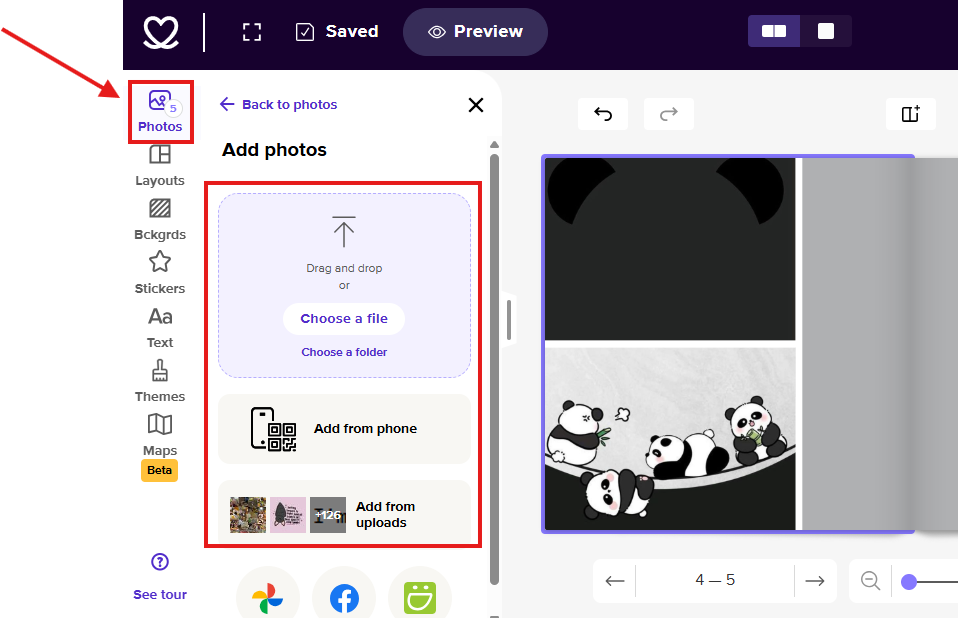
2. Find the Photo Tray which is at the left-side panel of the Mixbook Studio. 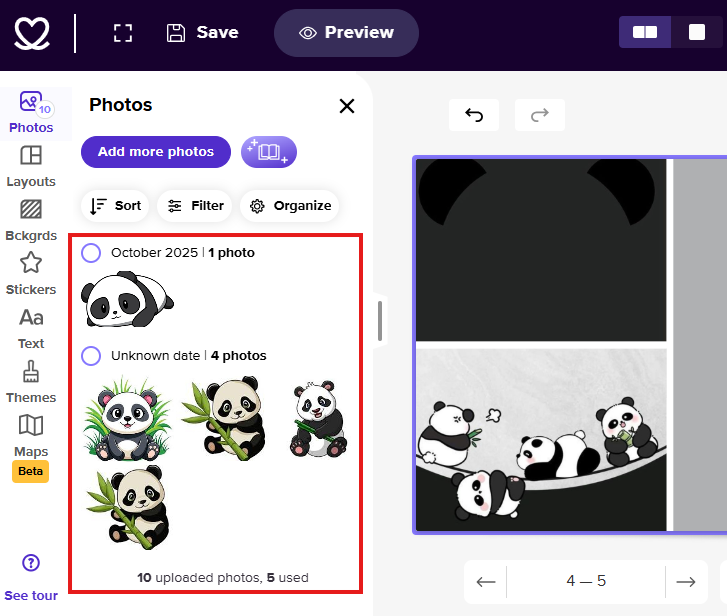
3. Click on a photo to select it then drag and drop onto your page:
- Place it directly on the page as a free-floating image.
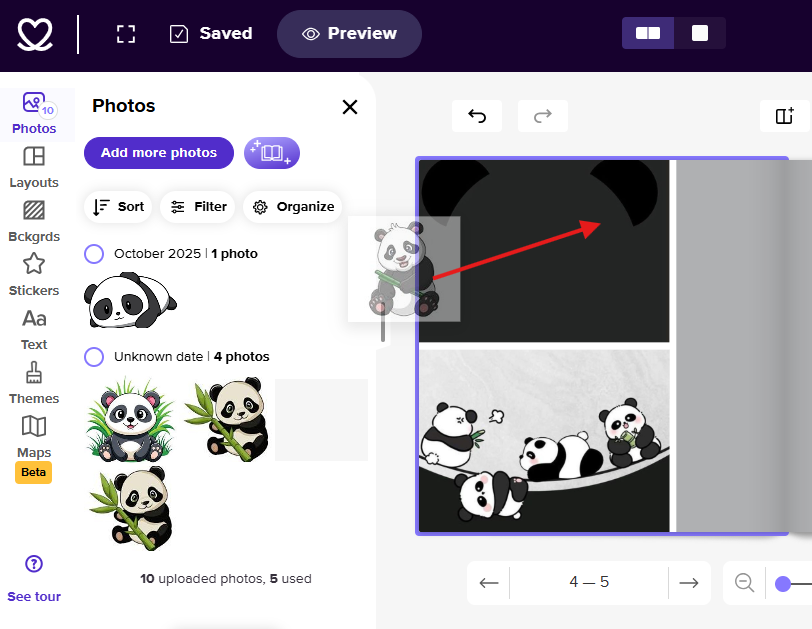
- Drop it into an existing photo box for a perfect fit.
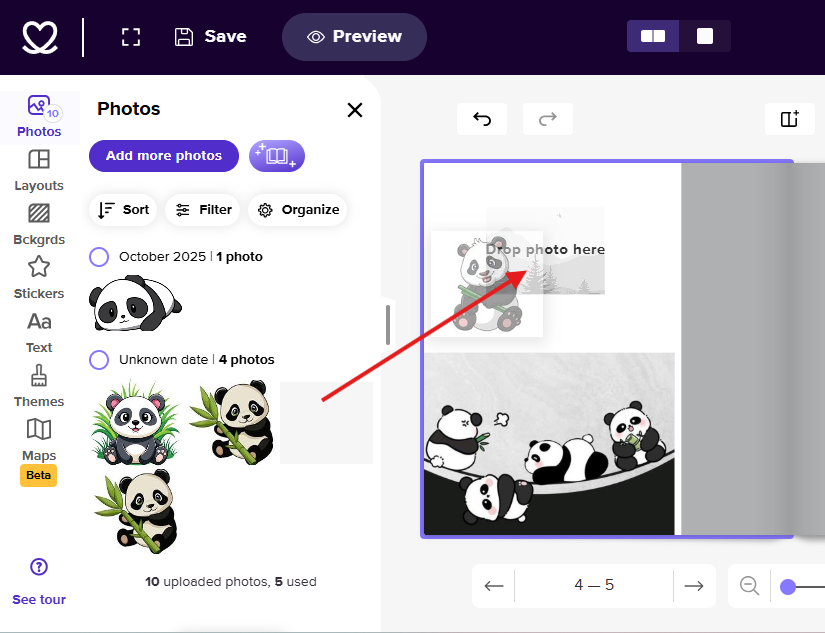
4. You can select multiple photos at once then drag and drop them directly onto your page.
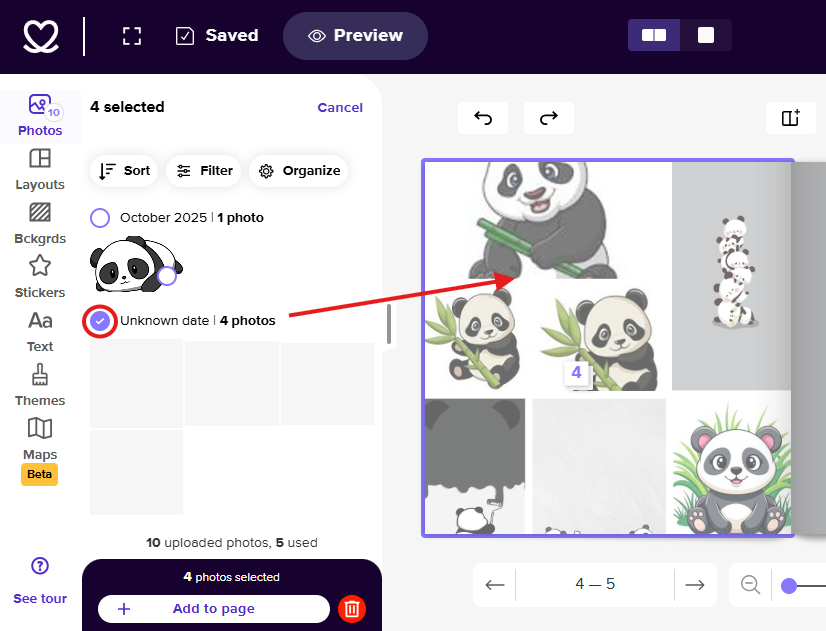
Drag & Drop from Your Computer
1️. Open your Mixbook project on desktop.
2. Locate the image file on your computer. 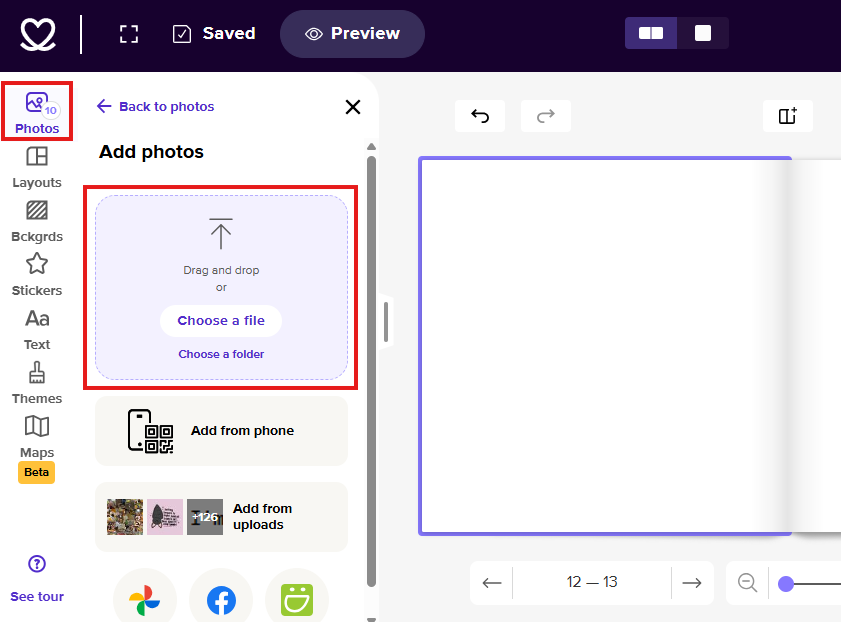
3. Drag and drop the photo directly onto your page in the Mixbook Studio. 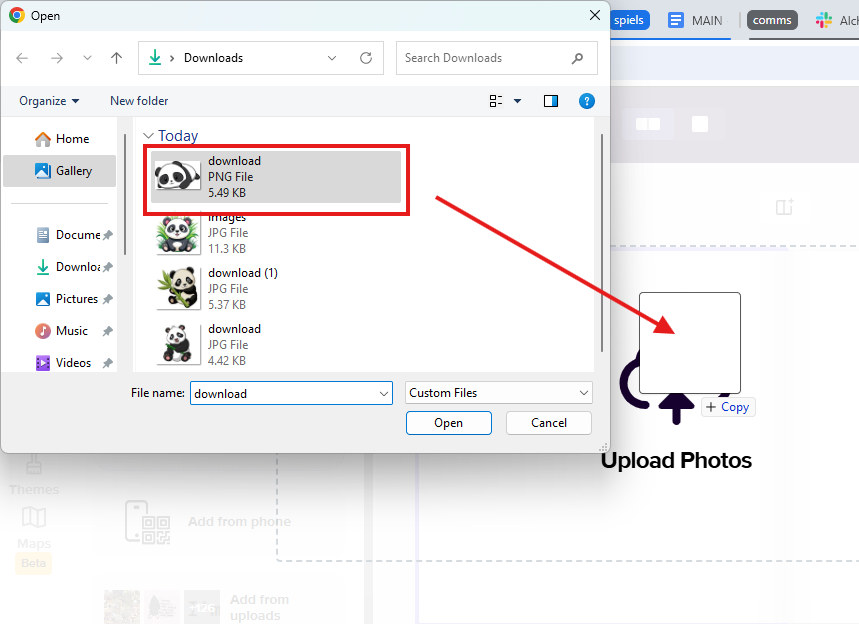
4. Adjust and reposition the image as needed.