You can easily upload photos from your favorite third-party platforms like Google Photo, Facebook, and SmugMug directly into your Mixbook project.
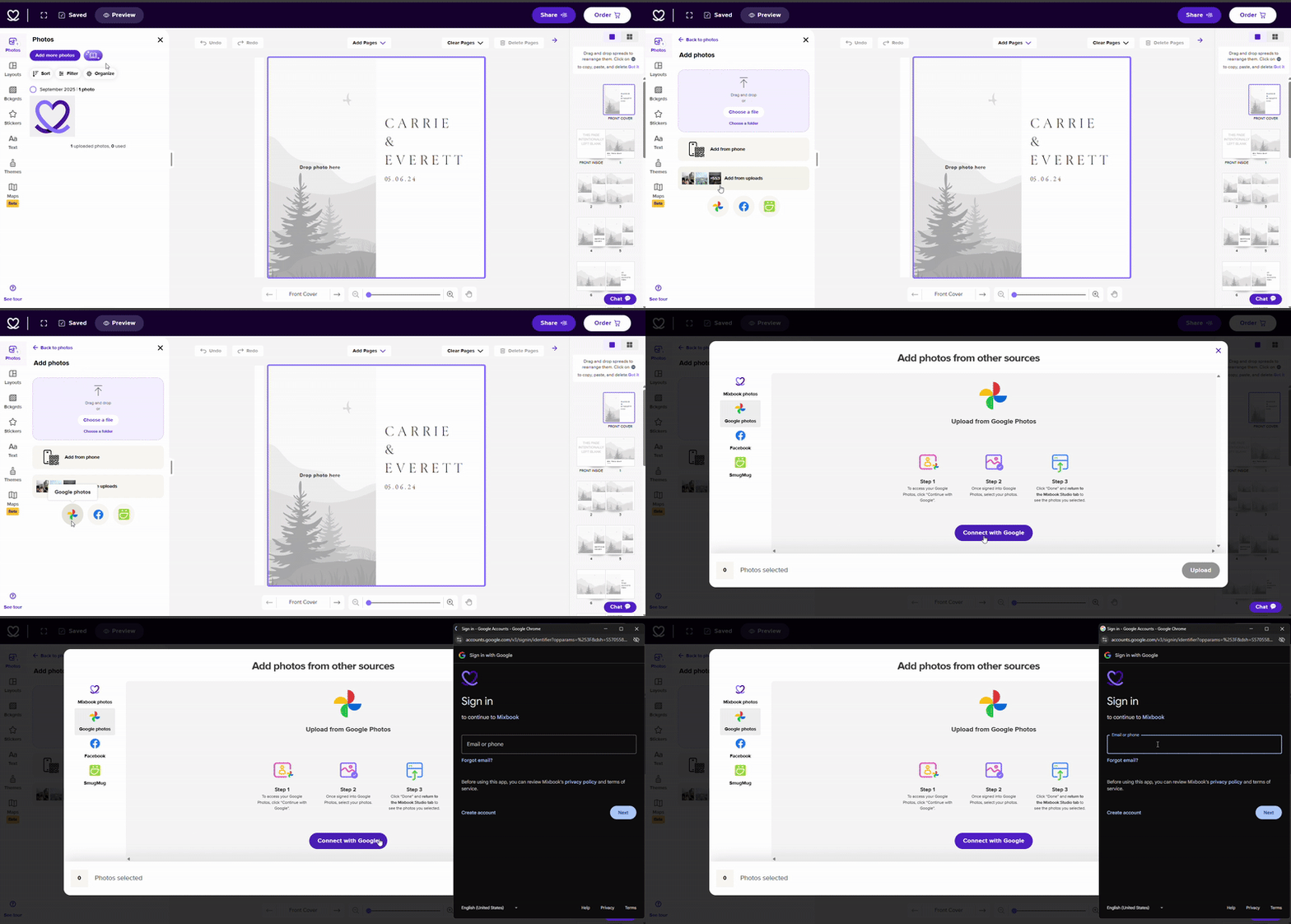
Steps to Upload from a 3rd Party Site on Desktop
1. Start or open your Mixbook project.
2. Click "Add Photos" in the editor.
3. In the upload window, select the platform you want to upload from:
Facebook
SmugMug
Google Photos
4. A login prompt may appear. Log in to your account to grant access.
5. Select the photos you want to upload.
6. Click "Open" or "Upload" to add them to your project.
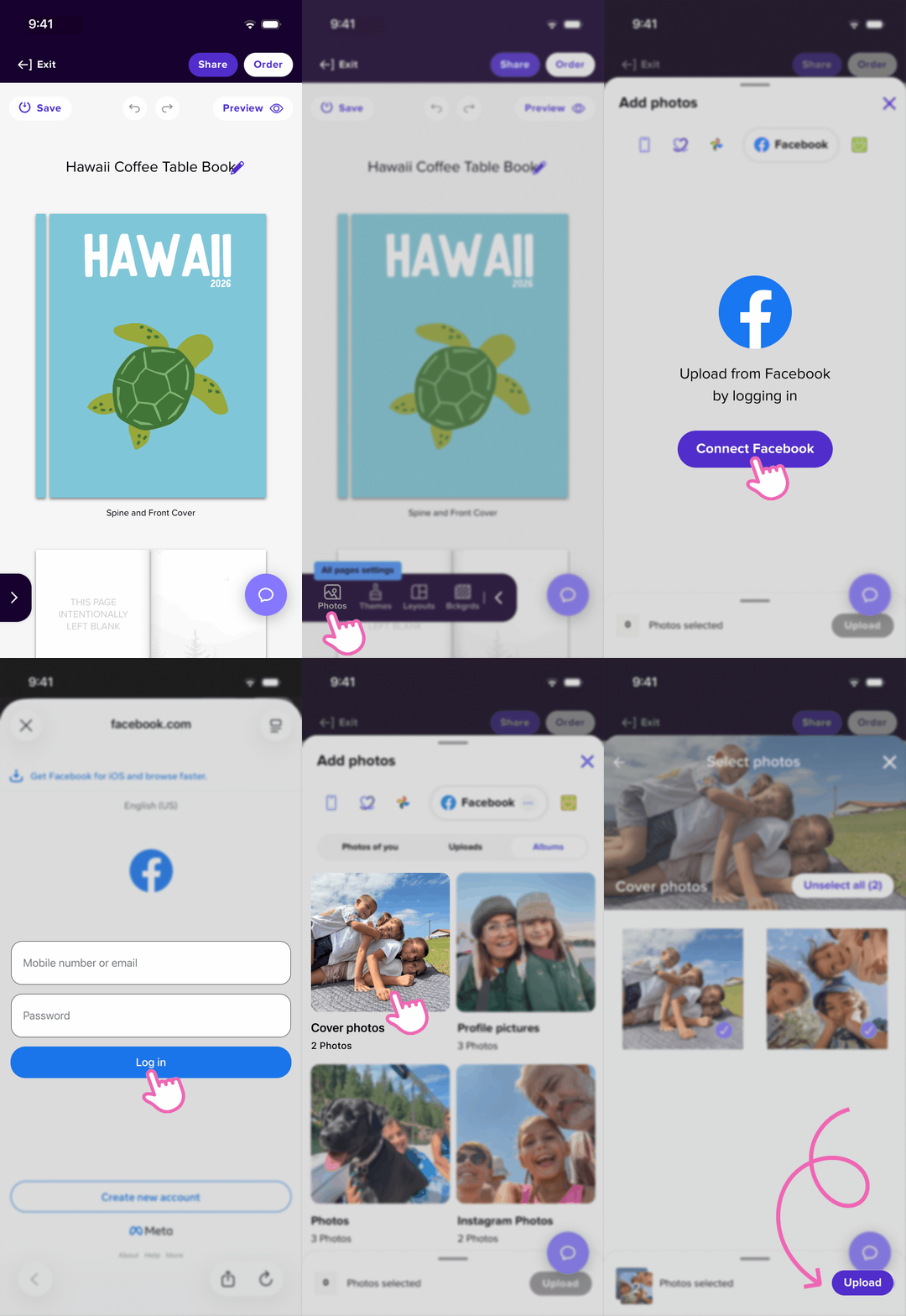
Steps to Upload from a 3rd Party Site in the Mixbook App
1. In the “Photos” tab, you can tap “Add photos”
2. In the next screen, you will see icon for “Google Photos”, “Facebook” and “Smugmug”
3. Select the preferred source and you will be asked to login
4. Once logged in, you can then start uploading your photos!
💡 Pro Tip: If you have trouble uploading, try downloading your photos to your computer first, then upload them manually from your desktop.