Steps to Upload Photos from Windows
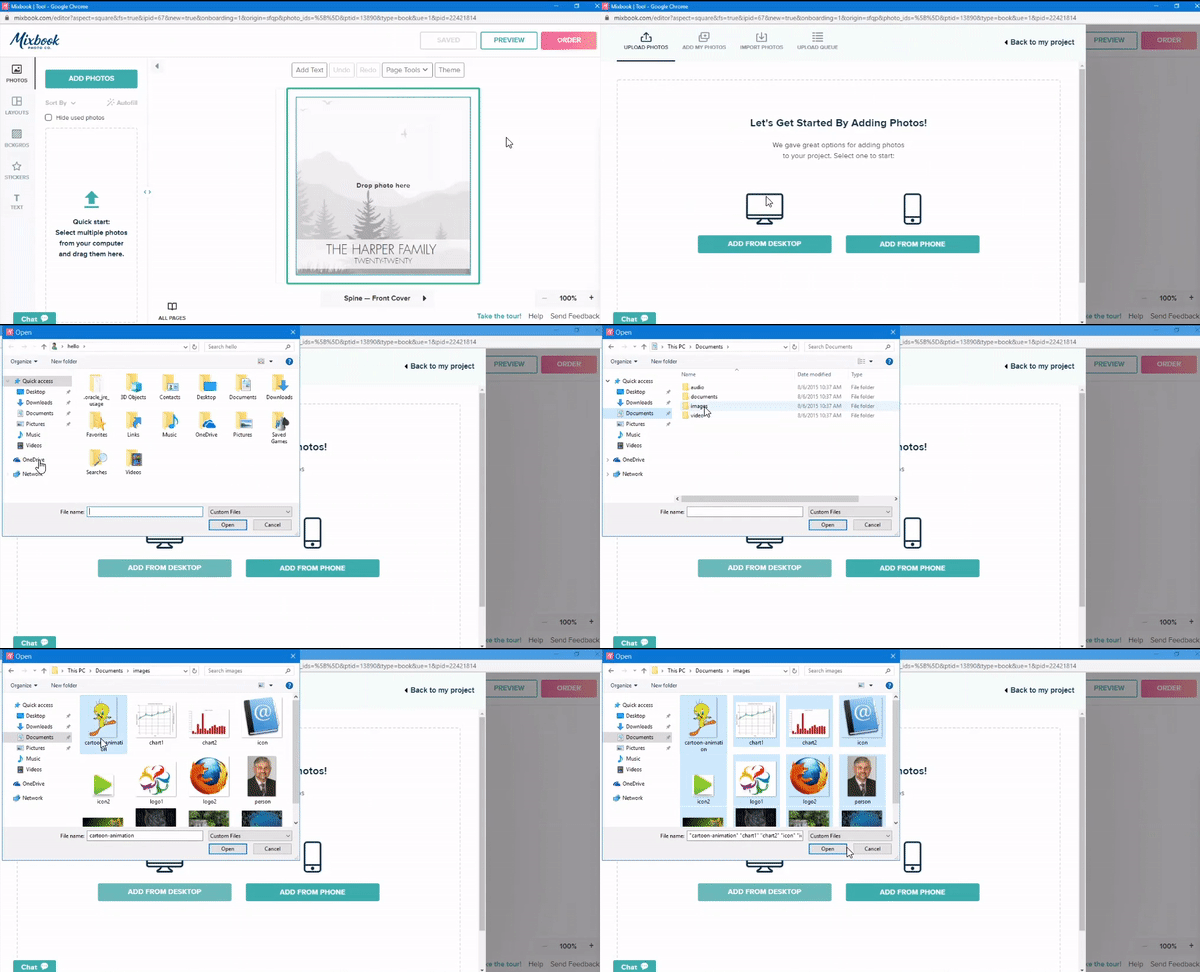
- Start or open your Mixbook project.
- Click "Add Photos" in the upper-left corner of the editor.
- In the upload window, select "Add From Desktop".
- Navigate to the folder where your photos are stored.
- Select the images you want to upload, then click "Open".
Upload Queue & Progress Tracking
After selecting your photos, you’ll be directed to the "Upload Queue," where you can track the progress of each uploaded image.
💡 Pro Tip: Use the keyboard shortcut "Ctrl + A" to quickly select all photos in a folder for faster uploading!