The easiest & fastest way to upload your photos from your phone (if you have an iPhone) is directly through our free Mixbook app directly from the Apple App Store!
If you do not have an iPhone or prefer to download from the mobile web version of mixbook.com follow the below instructions::
Options to upload photos from your phone without the use of the Mixbook app:
Option 1. QR code
Option 2. Email Direct URL
BEFORE YOU START:
* Please use your phone for both uploading options & for option 1, have your phone camera open
* Ensure your phone is connected to a stable wifi/internet connection. We recommend using Google Chrome, if possible, as your browser when uploading photos from your Phone.
Helpful Tip Post Upload:
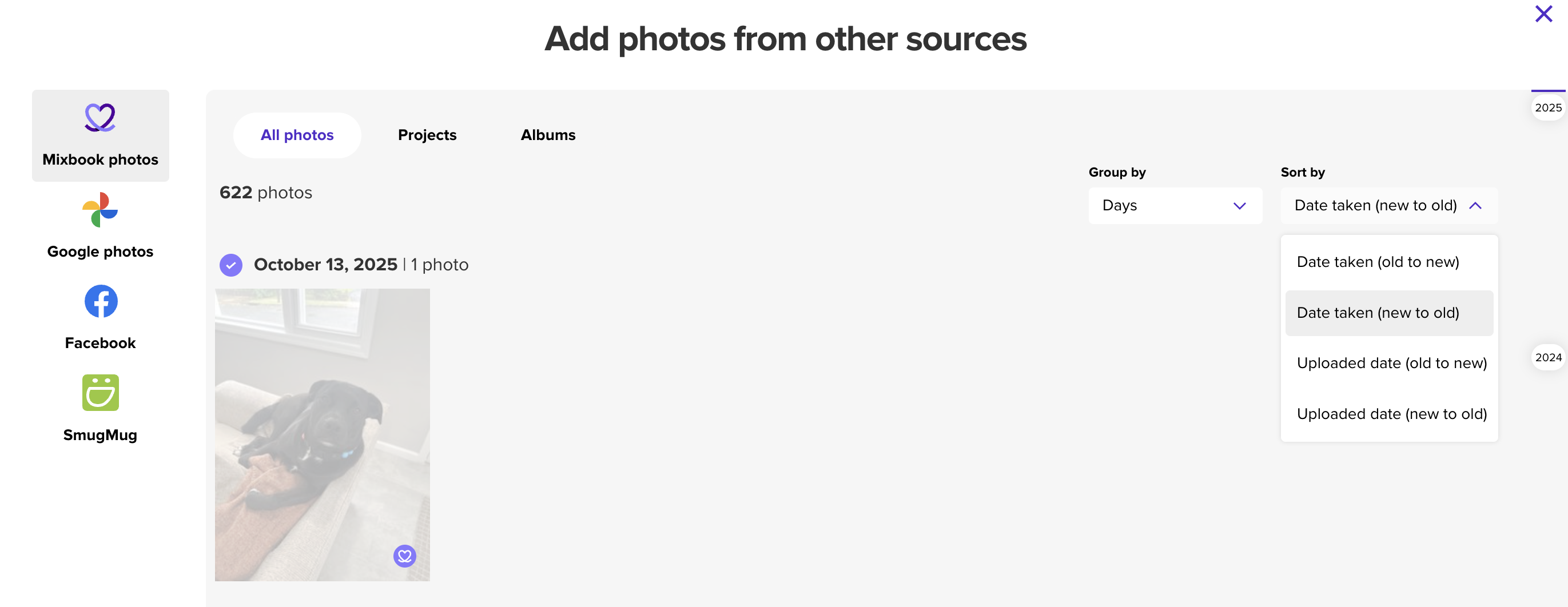
* Once you've successfully uploaded your photos, they will automatically be sorted in your "uploaded photos folder" by the date the photo was taken, newest to oldest. To view photos in order based on the upload date, click on "sort by" & filter by "uploaded date (new to old)".
 Option 1: QR code
1. Log in to mixbook.com and start a project or select the project you're currently working on to begin
2. Once in your project in the Mixbook editing studio, you'll see a prompt to get started adding your photos
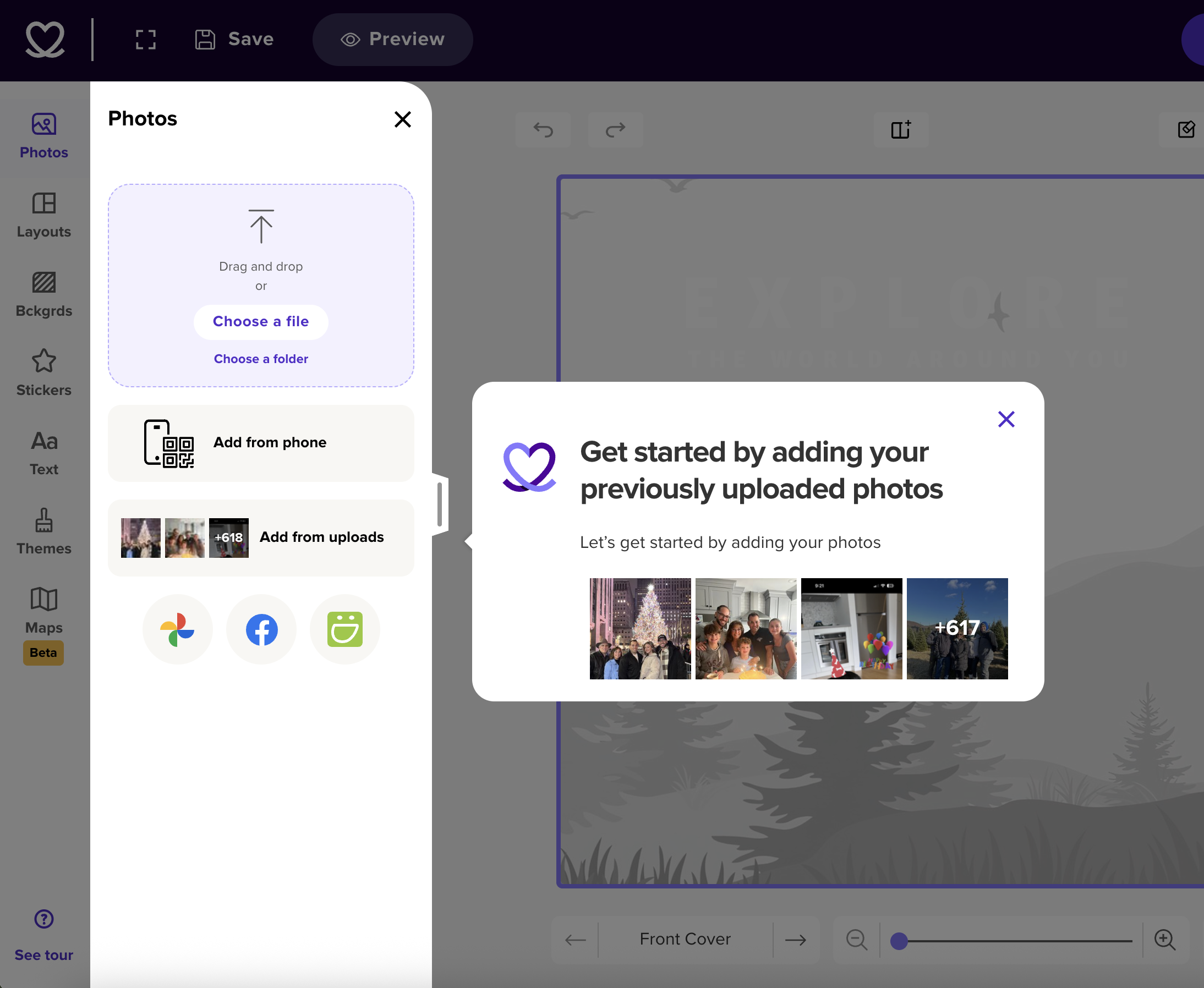
3. Click on "Add from phone" & open your phone camera to scan the QR code.
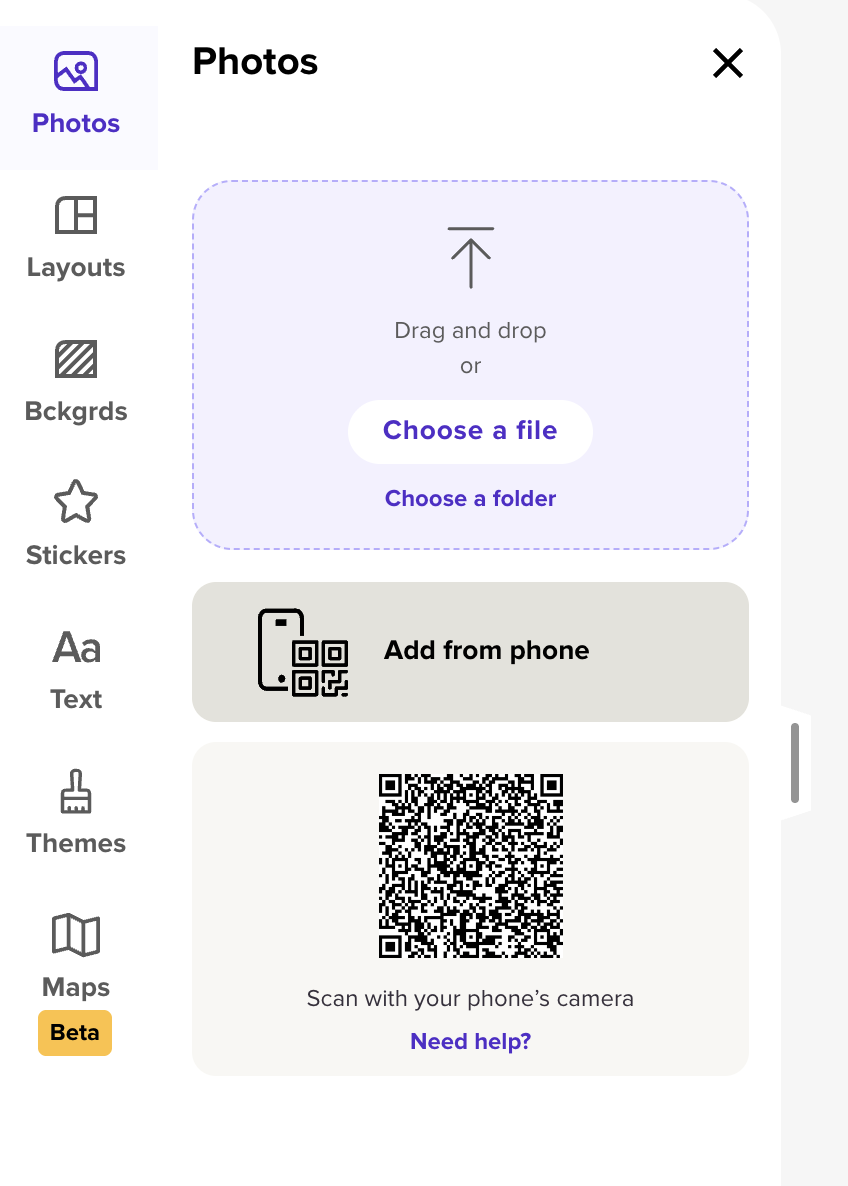
* While scanning the QR code, click on the URL that pops which will take you to the next page for uploading your photos.
*Select the location in which you'd like to upload your photos from (camera roll or google photo)

*Once you've selected your photo upload location, if this is your first time uploading photos from your phone, you will be asked for permission to allow zero, full or partial access to your camera roll. Partial or full is required to upload your photos & for the best experience we suggest allowing full access.
*Select the photos you'd like to upload and click "upload"! We suggest uploading in small batches up to 20 at a time to prevent delays or the upload from timing out
* After you are done selecting your photos & they have successfully uploaded, you can go back into your project from your photo or desk top
*To add the photos you have uploaded to be used for your project click "photos" > "add more photos" > add from uploads
Option 2. Direct URL
If you cannot get the QR code to work for you OR you'd prefer to not to use the QR code, you can use the feature "email the upload link"
1. Follow steps 1 & 2 from option 1
2. Click "need help"
3. When the pop up window appears, click the question " The QR code doesn't work, what can I do"
5. You'll see " email the upload link" written in purple, click that & a direct link will be sent to you email (you must be logged into your account for this option to work)
Downloading Previous Uploaded Photos (Via Desktop only)
To download a photo you’ve uploaded:
- Head to your My Photos page and hover over the image you want.
- Click the magnifying glass icon to open it in a new tab.
- From there, just right-click the photo and select “Save Image As” to download it.
📝Note: You’ll need to download photos one at a time using this method.