There are also additional features to organize photos such as “hide duplicates” or “hide used” which are very helpful if you have a lot of photos
Easily find, arrange, and manage your photos using Mixbook’s sorting, hiding, and search features.
Sorting Your Photos on Desktop
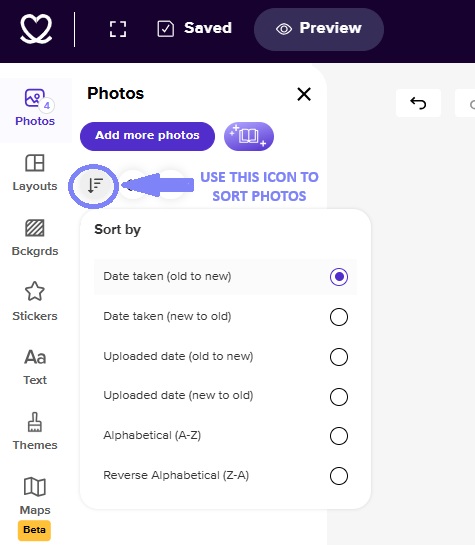
The "Sort by" feature is located below the "Add Photos" button on the left side of the editor. You can sort your images by:
- Date Taken – Arranges photos from oldest to newest based on when they were captured.
- Date Added – Sorts images by the order they were uploaded to Mixbook.
- File Name – Organizes photos alphabetically (A-Z).
Sorting Your Photos in the Mixbook App
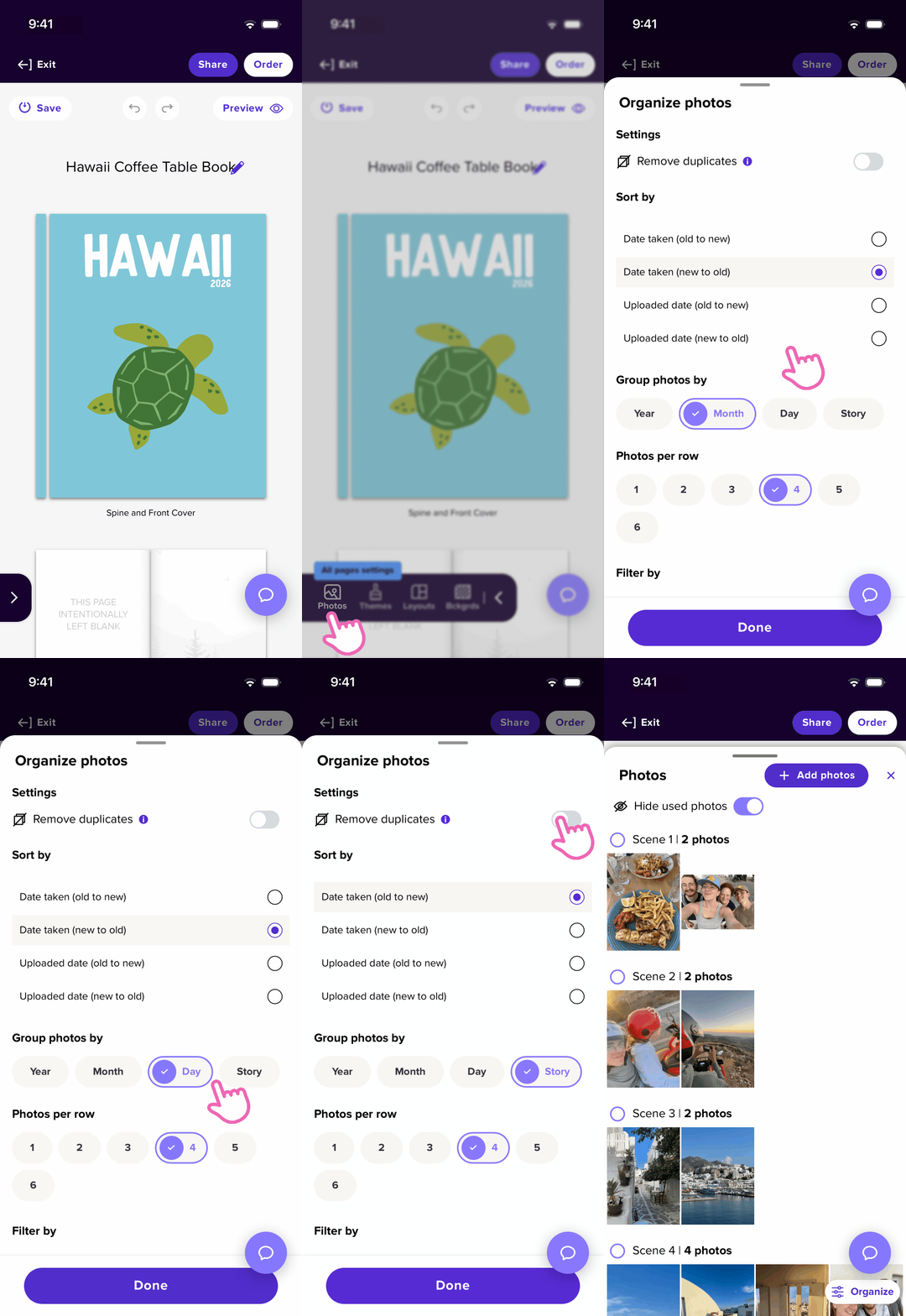
- To sort your photos in the app, tap on the “organize” found at the bottom-right corner of the screen
- You can organize your photos from by “Date added (new to old)”, “Date Taken (new to old)”
- You can also group them by Day, Month or Year
- Additionally, you can group by “Story” which groups the photos in a story-centric manner
- There are also additional features to organize photos such as “hide duplicates” or “hide used” which are very helpful if you have a lot of photos
Hide Used Photos
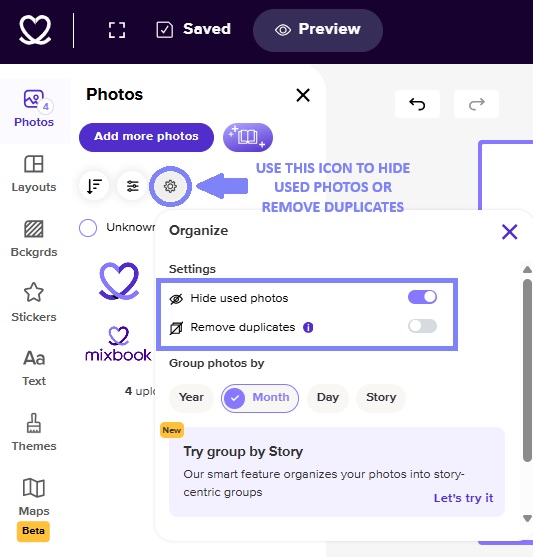
To keep track of which photos you've already placed in your project:
- Click the "Hide Used" button (located just below the "Sort by" option).
- This will filter out photos that have already been added to your project, helping you avoid duplicates.
Expanding the Photo Tray
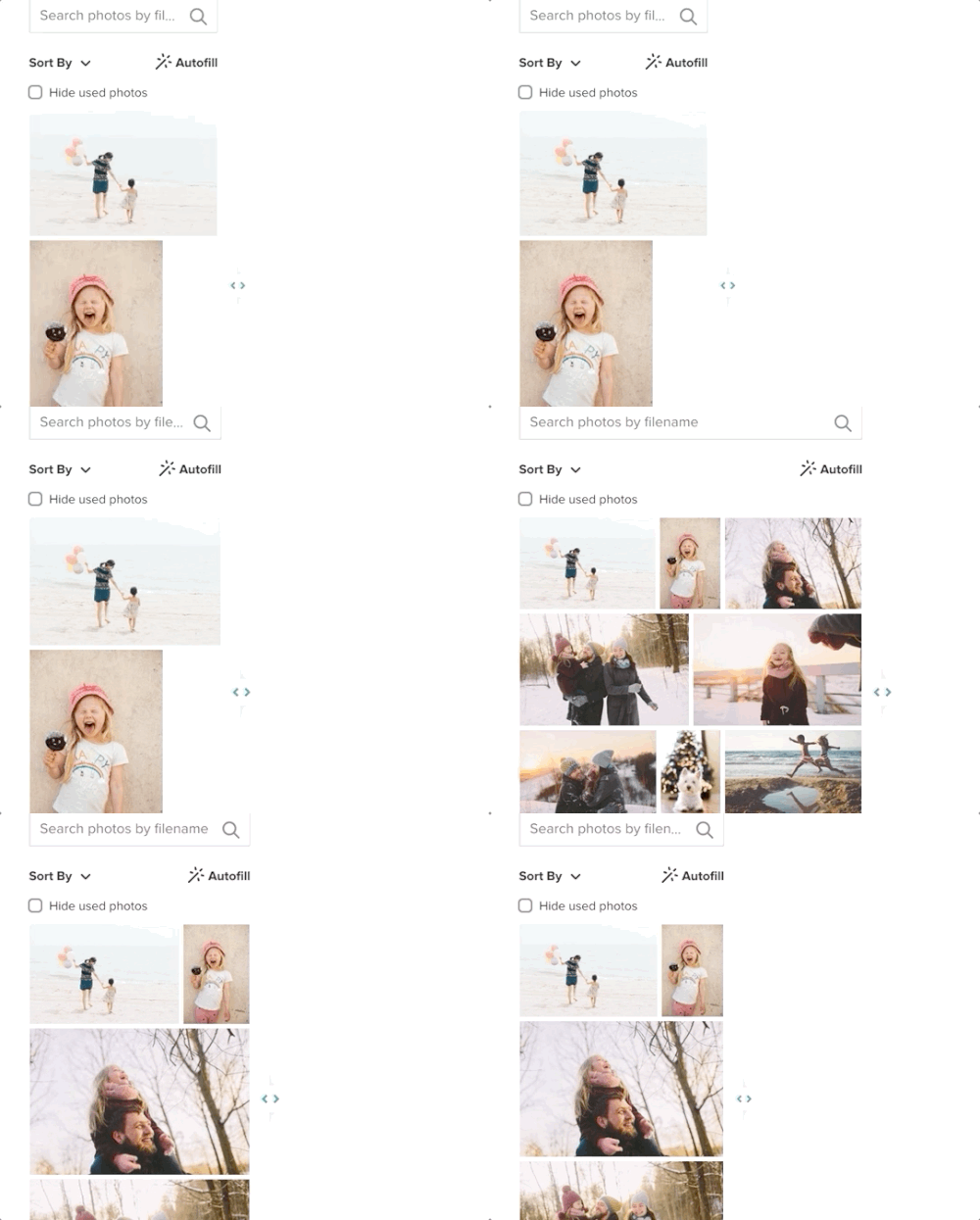
Click the expand button to enlarge the photo tray, allowing you to see more images at once and browse more efficiently.
💡 Pro Tip: Combine sorting, hiding, searching, and expanding to streamline your workflow and keep your project organized!