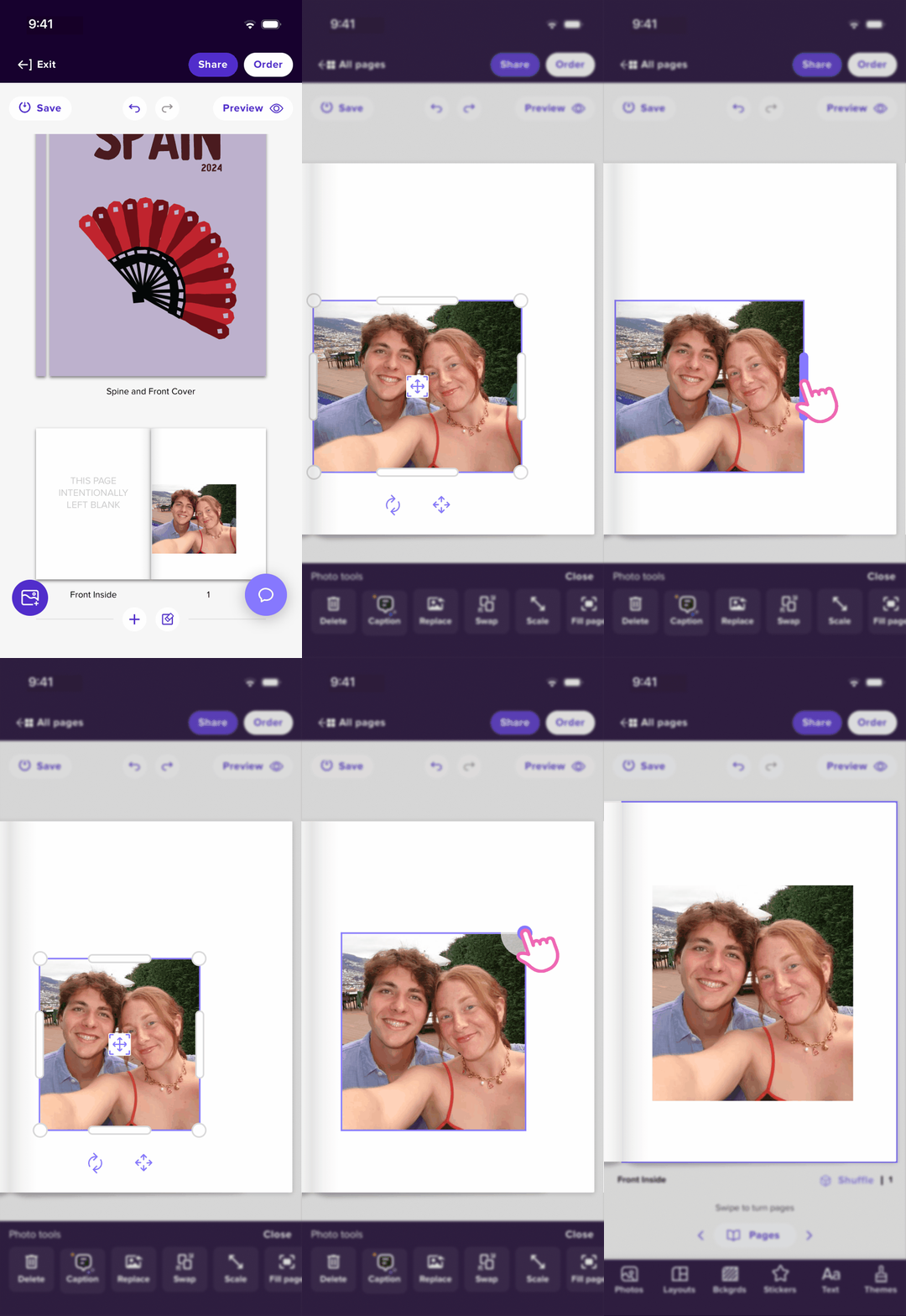
Resizing your photo is easy! Simply select the image and adjust its size by dragging the sides or corners.
Resizing Options
On Desktop
🔹 Resize Using the Sides
- Click and drag any side of the photo.
- This changes the dimensions but may crop the image or distort its original ratio.

🔹 Resize Using the Corners
- Click and drag any corner of the photo.
- This maintains the original aspect ratio while resizing.

💡 Pro Tip: For Desktop, drag the photo directly into the page (no photo box) to avoid the photo from being cropped and maintain the photo's original dimension.
On Mixbook App
- You can resize photos by dragging the corners of the photos.
- Furthermore, dragging the side of the photos will allow you to crop the photo.