What are “Mixbook Movies” ?
Mixbook Movies is a complimentary feature to experience your photo book as a video. They are a great way to see your book come to life & share it digitally with others. Note that not all Photo Books are compatible with the Mixbook Movie and require a minimum of 30 photos and less than 200 photos.
** Available for associated photo books placed on & after 11/1/2024.
Movie's are now available as Digital Creations only on the Mixbook app for iOS users! You can now make a Movie with your memories at any time & share with loved ones. Download the app today
How do I get a Mixbook Movie?
Once you add your photo book to the cart, you’ll see the option to also add a Mixbook Movie for that Photo Book. Note that not all Photo Books are compatible with the Mixbook Movie and require a minimum of 30 photos and less than 200.
Can I download my Mixbook Movie?
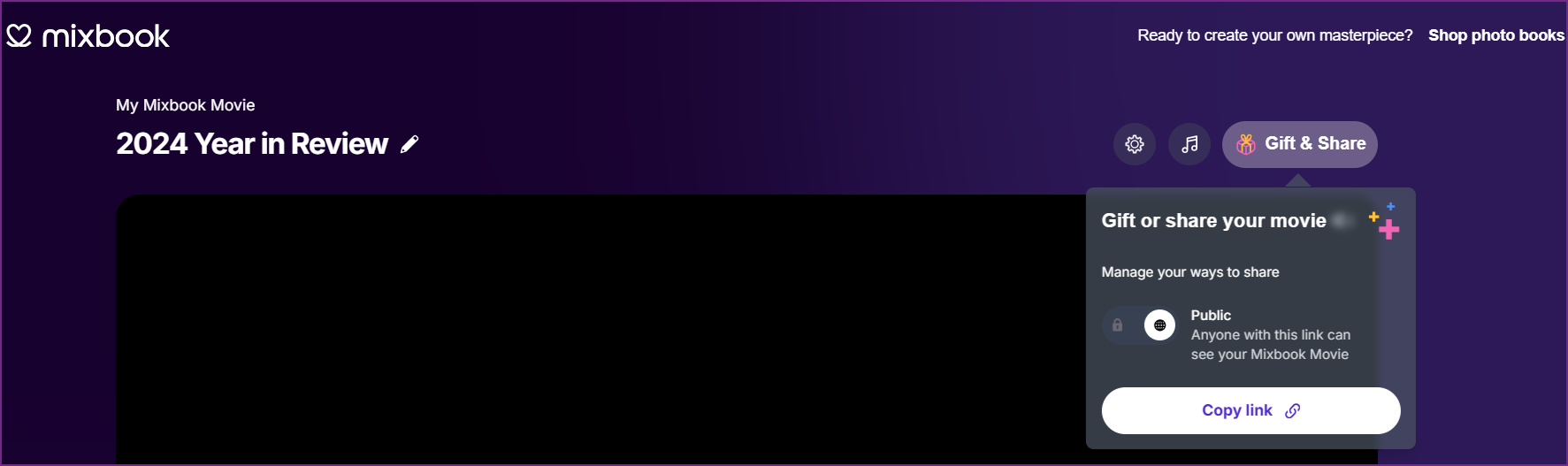
No, you cannot download Mixbook Movies at this time but, while viewing your Mixbook Movie you can copy your shareable link to provide to friends & loved ones to watch!
How do I share my Mixbook Movie?
Simply open your Mixbook Movie to watch it and find the Gift icon in the top right of the page. By default, Mixbook Movies are private, just for you. But if you choose you can make a public link that will let anyone with the link view your Mixbook Movie. You can share the link via text or email as a sneak peak of their photo book.
Do I get a Mixbook Movie if I cancel my Photo Book order?
No, you must purchase your Photo Book to receive your complimentary Mixbook Movie.
Can I edit my Mixbook Movie?
You can customize certain aspects of your Mixbook movie like music & movie duration. You cannot customize your Mixbook Movie in terms of adding or removing specific photos.
Can I play my Mixbook Movie publicly, like in a Movie Theater or Sports Arena?
No, Mixbook Movies are for personal use only and are not for commercial broadcasting.
I purchased a photo book but didn’t get a Mixbook Movie - where is it?
If you added a Mixbook Movie at checkout when purchasing your Mixbook photo book, you should have received an email to view it within an hour of purchase. If you haven't already please check your spam filter.
If you did not add the Mixbook Movie at checkout, or are unsure, you can still get your Mixbook movie!
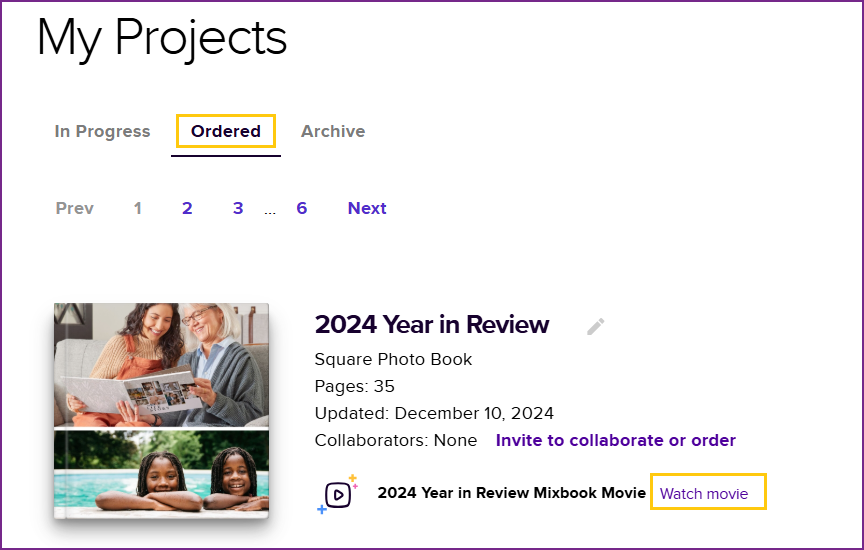
While on Mixbook.com, on your desktop or laptop, go to Projects > Ordered to locate the photo book you're looking for
** Eligible photo books (ie. contain the minimum number of photos and ordered on 11/1/24 or later) should see a link to ‘View’ or ‘Generate’ your Mixbook Movie.
Where can I access my Mixbook Movie?
If you added a Mixbook Movie at checkout, you should have received an email to view the video within an hour of purchase so check your spam filter. You can also check My Projects > Ordered. Eligible photo books (ie. contain the minimum number of photos and ordered on 11/1/24 or later) should see a link to ‘Watch movie’ or ‘Generate movie’ your Mixbook Movie.
Example:
Can I edit the title of my Mixbook Movie?
Yes! When you view your Mixbook Movie, tap the little pencil to the right of the title if you wish to change it to something else.
Troubleshooting Missing Photos in your Mixbook Movie?
There is now an easy fix that we can share with customers when photos don’t appear in their Mixbook Movie. Instead of regenerating the project multiple times, this quick setting adjustment usually resolves the issue:
Step 1: Open the Mixbook Movie
Start by accessing the project where photos are missing.
Log in to the customer's account.
Navigate to the project that contains the Mixbook Movie.
Open the Movie Editor.
Step 2: Go to Settings
Adjusting the duration setting resolves missing photo issues.
Locate the Settings option in the top-right corner of the Movie editor
Click to open the Settings panel (gear icon)
Step 3: Select "Fit to Soundtrack"
This option ensures all photos are included without needing regeneration.
In the Settings menu, find the Duration dropdown.
Select Fit to Soundtrack from the available options
Preview the Movie to confirm all photos are now included
Quick Tip:
If the customer has already tried regenerating multiple times, reassure them that this is a known behavior — not a bug — and that changing the Duration setting is the correct fix. No need to escalate unless the issue persists after switching to Fit to Soundtrack.