Currently, pages can only be added by spread (two pages), not individually. Follow the steps below to add new pages to your project.
📌 Note: Adding a single page is not yet available, but we’re working on making this possible in the future! Furthermore, adding pages all at one is not yet possible. Pages have to be added per spread as you work on the project.
Desktop Instructions:
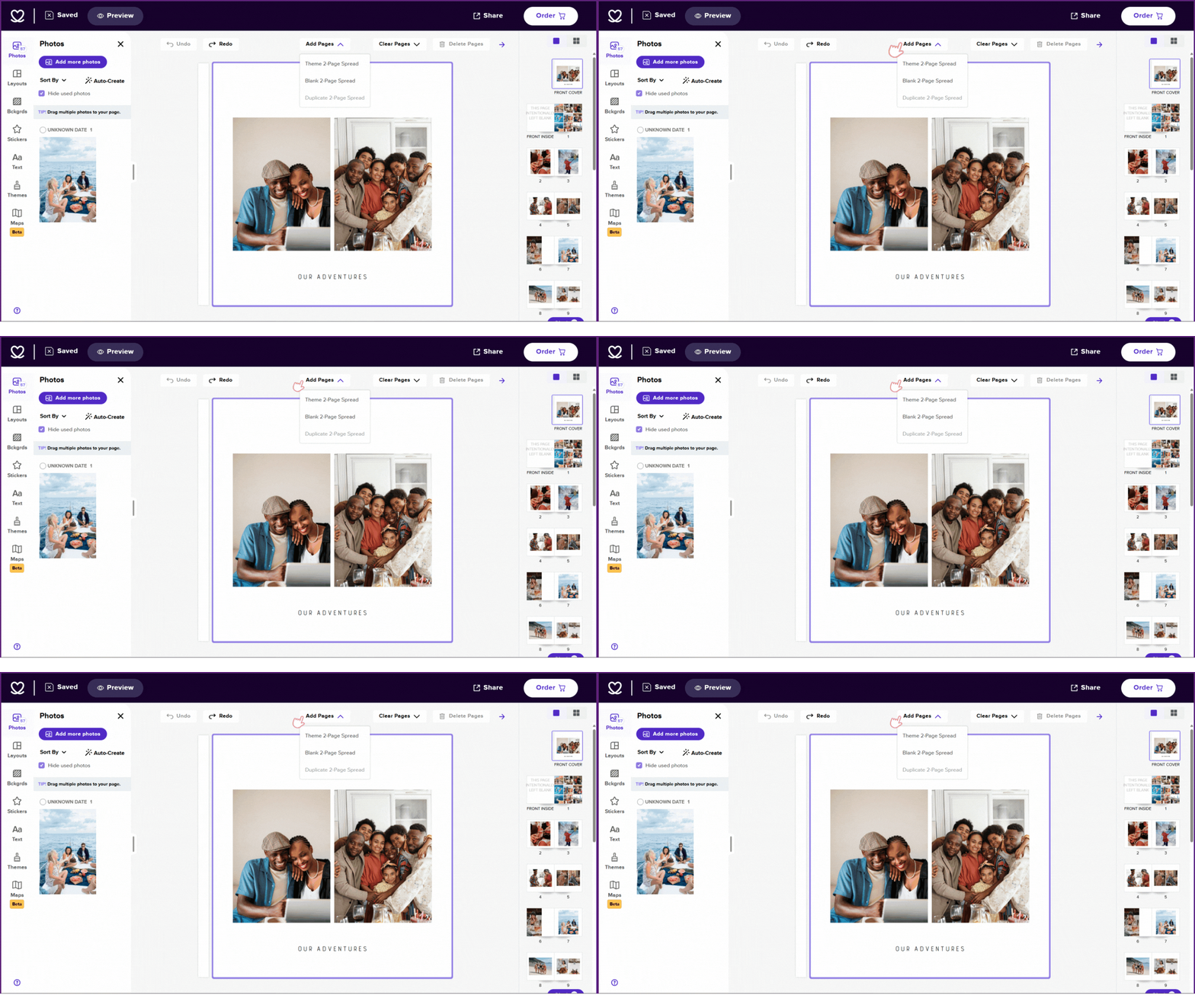
1. While in the Mixbook studio, where you are creating your project, click the "Add Pages" button at the top of the workspace
2. From the "add pages" drop down, select from these three options:
- Themed Spread – Uses a preset design for photo placement based on the template you selected
- Blank Pages – Adds an empty spread for custom design.
- Duplicate Pages – Copies the existing spread (two pages) you are currently on.
3. The new spread will be added after the page you are currently on.
Mobile Browser & Mixbook App
1. In the top left corner of the screen, click All Pages
2. Below the image of each two page spread, you’ll see a button.
3. Tap the button to add pages below. You can select the following for your new pages:
- Blank Spread- two side by side blank pages
- Themed Spread-Uses a preset design for photo placement based on the template you selected
4. The new spread will be added after the page you are currently on.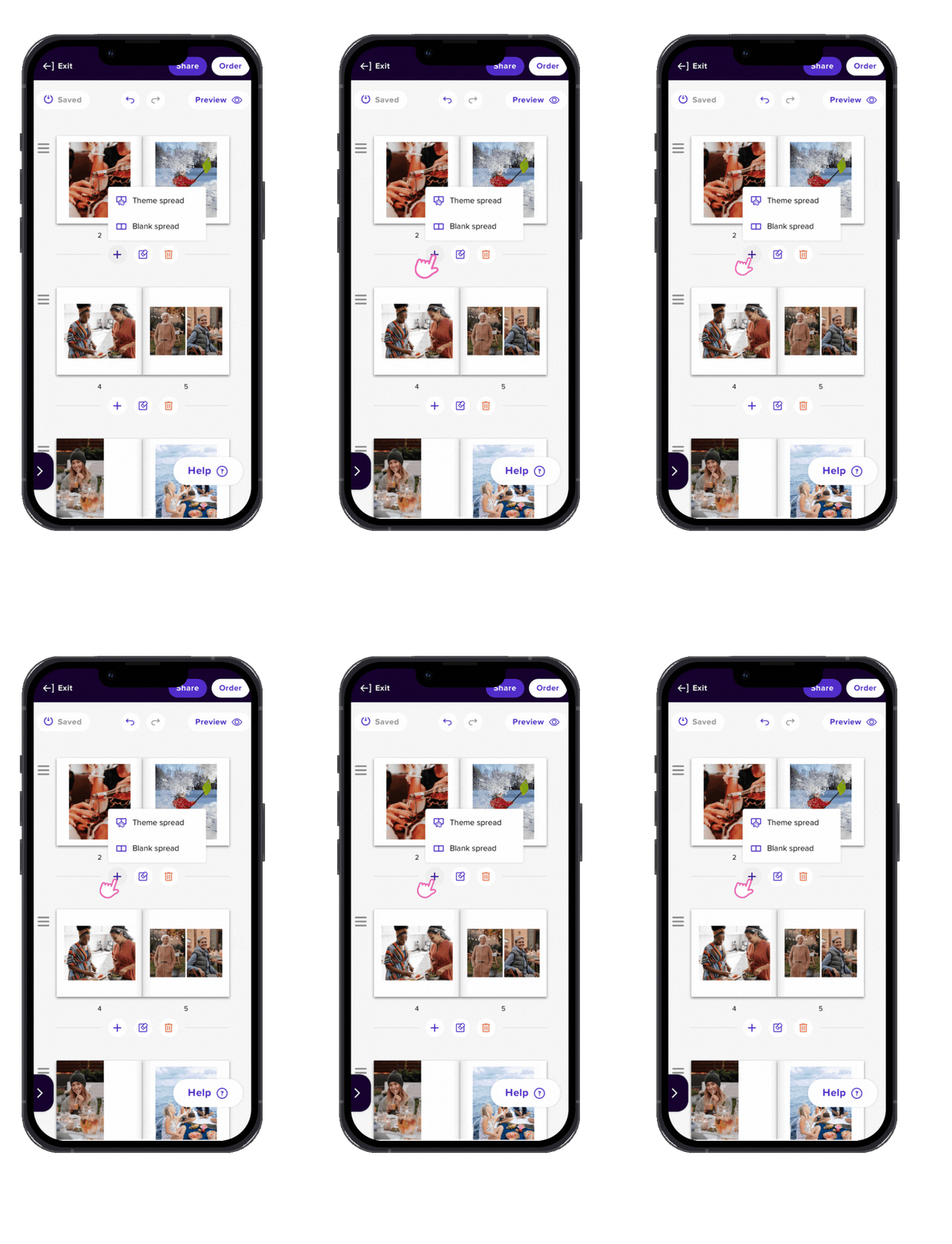
💡 Pro Tip: If you're planning a longer photo book, consider adding multiple spreads at once for easier organization.
📌Note: Adding pages is only supported for photo books. Calendar projects feature a fixed 12-month layout and do not support additional pages.