While creating a Mixbook it is not uncommon to want to move pages around! If you want to move a two-page spread (side by side pages) or swap a single page in your Mixbook project, before or after you start designing, you can follow these simple steps.
Note::
Moving a Two-Page Spread (side by side pages) & Single Pages
📌 Note: Swapping a single page is not yet available on the mobile app and mobile browser.
🖥️ On Desktop
1. Opening the Page Tray
- On the right side of the Mixbook Studio, locate the small purple arrow next to "delete pages" to open the "paper tray"
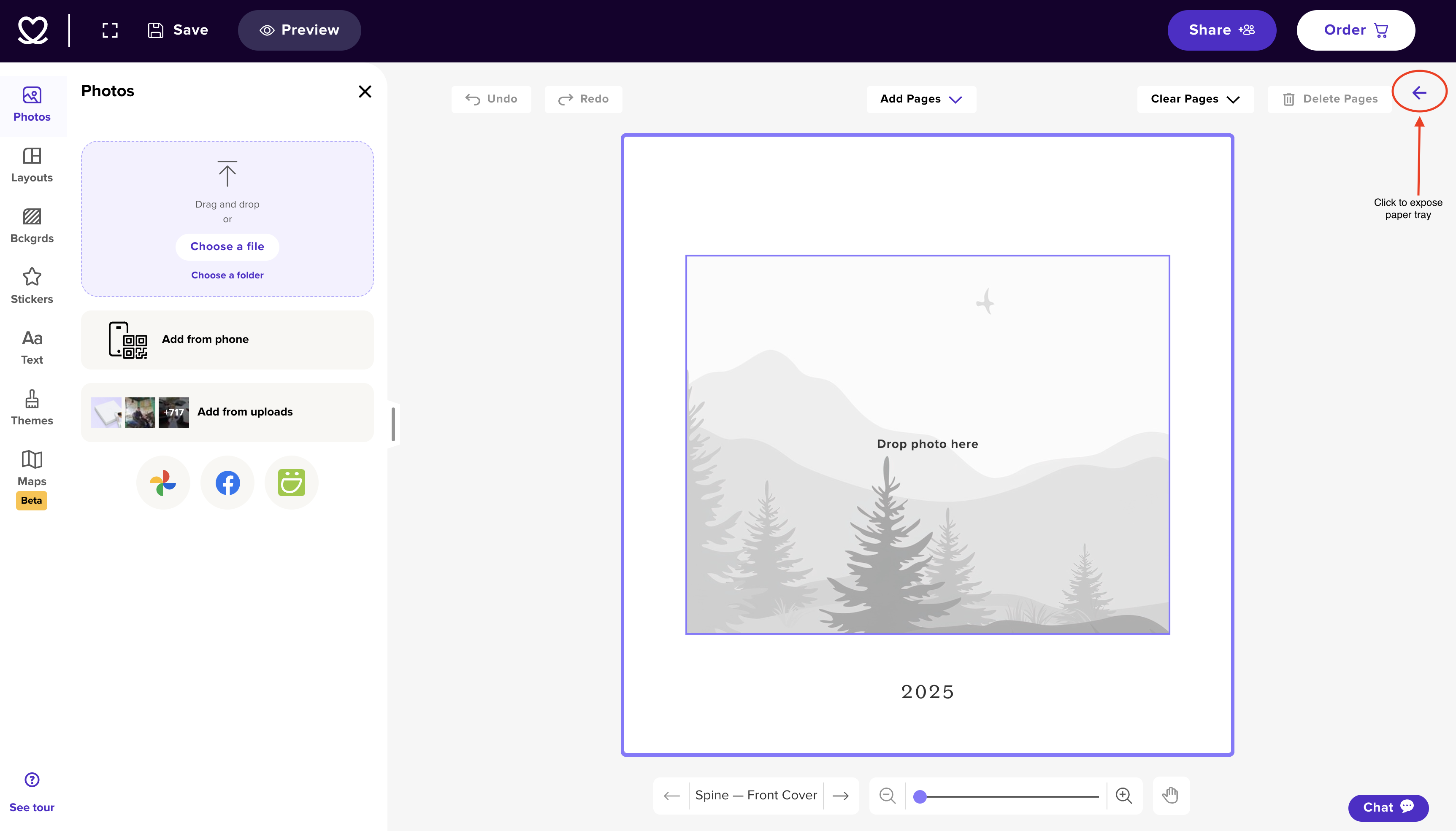
- Tip: Once you've opened the paper tray, you can re-close once you've made your adjustments by clicking the purple arrow again next to "delete pages"
- Once you open the paper tray, you will see the smaller compact view of all pages in your book that you can drag & drop to alternate order, copy pages, clear pages and copy existing pages
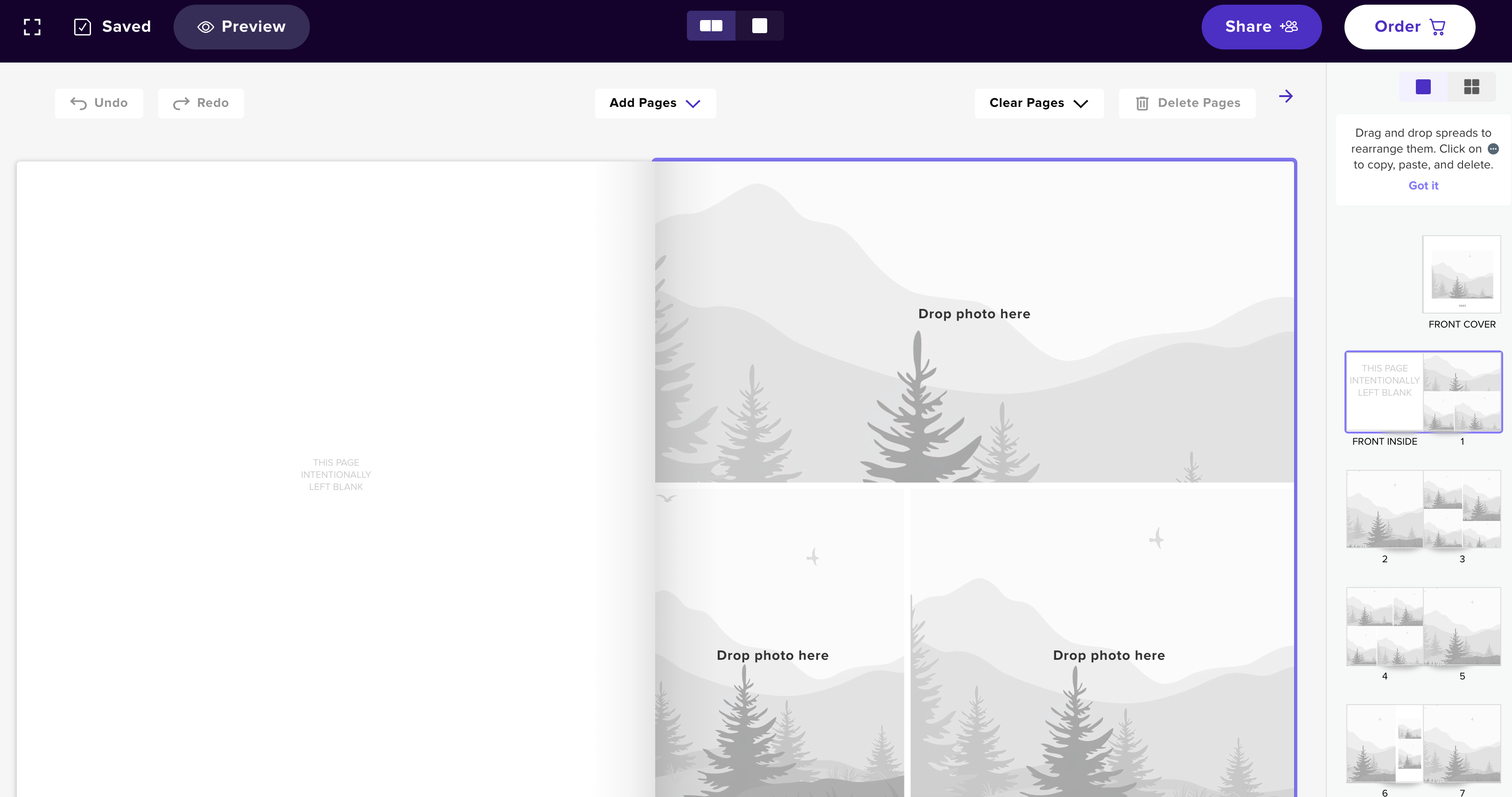
- If you'd prefer a wider spread view of all pages, you can click the grid Icon to switch views

2. Select the page or spread
- Hover over the page or spread until the hand icon appears
3.1 To copy or clear a page or spread
- Click on the three dot purple icon & select the action you'd like to takek and find the three-dot icon in the middle of the spread or page.
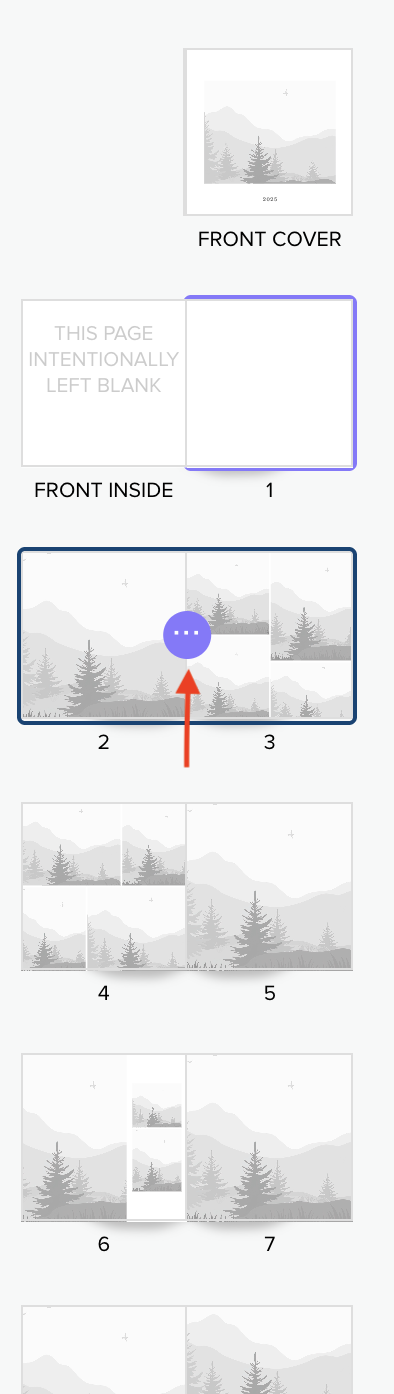
3.2 To move pages & spreads Drag & Move
- Hover over the page or spread (position yourself in the middle of the two pages to move both together
- Click the page or spread
- Hold and drag to the desired placement
4. Move & Release The Page(s)
- Move & release to reposition the spread where you want it
Step by step visual of the full process::
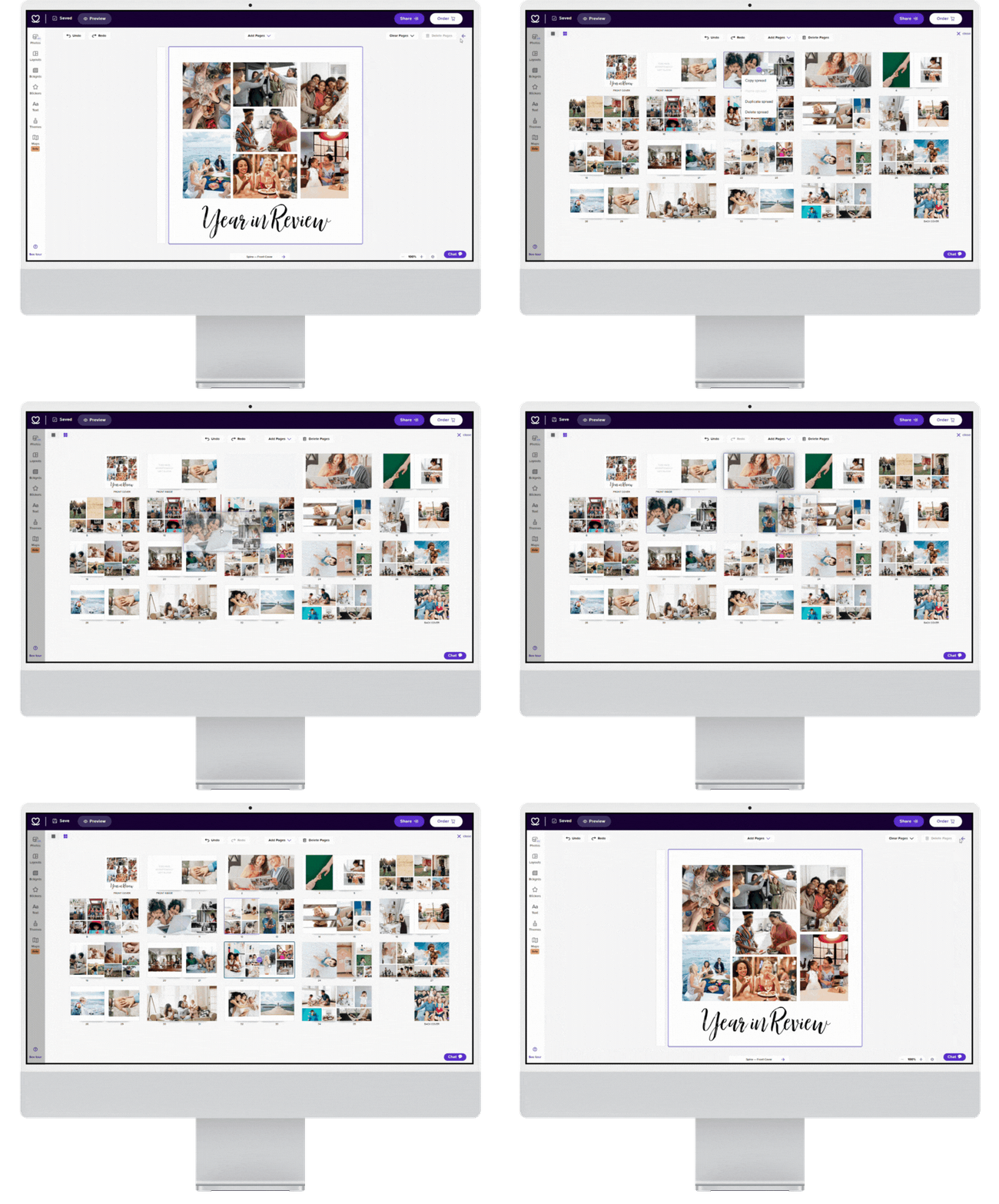
Moving a Two-Page Spread
📱 On Mixbook Mobile App and Mobile Browser
1. Tap All pages at the top left of the Mixbook App.
2. Press, hold and drag on the handle at the upper left of the spread to rearrange spreads..
3. Move & release to reposition the spread where you want it.