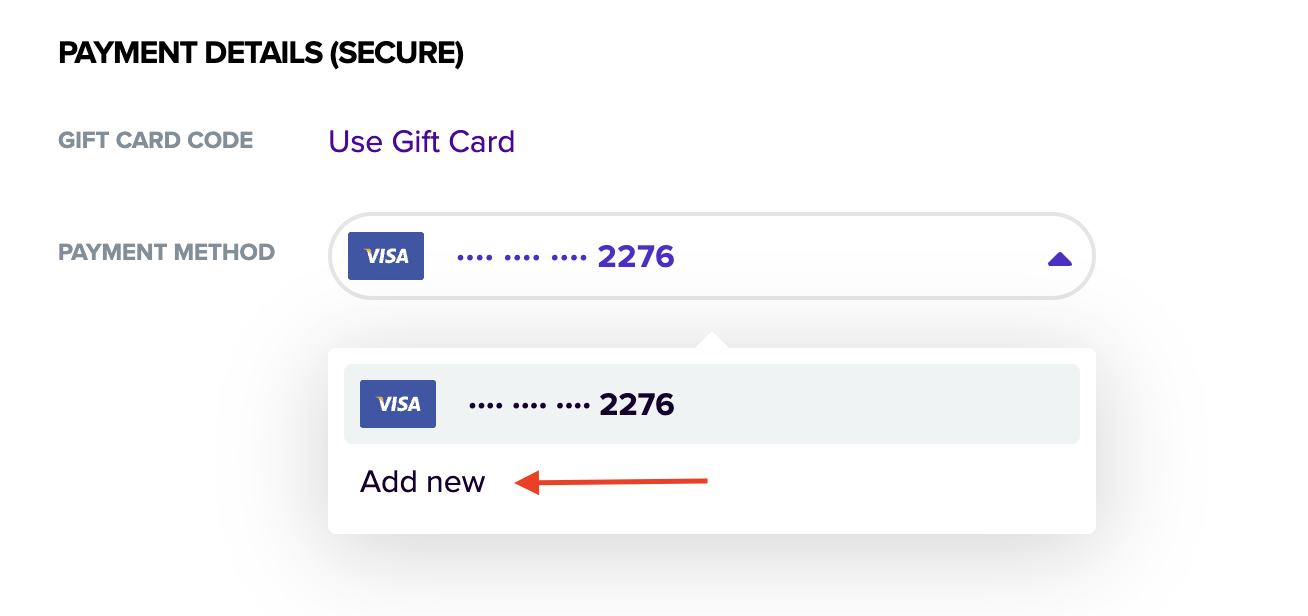
The easiest way to add a new shipping address and/or payment method for your Mixbook purchase is through the check out page prior to finalizing your order. You can get to the check out page after you've added your project to your cart > selected your preferred shipping speed & added any promotional code (if applicable) & clicking "check out"
Adding a new address:
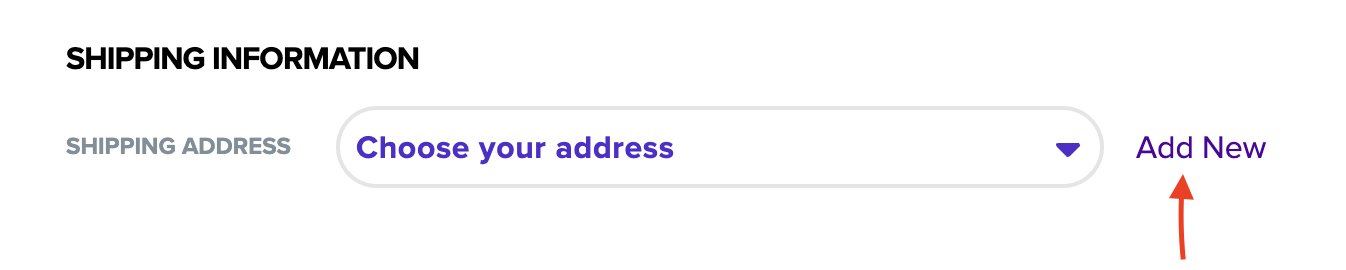
- Go to "Shipping Information"
- Click "add new" located next to the shipping address space.
- Enter in all information including ship to name & full address, when you're done please click "use this address"
Selecting an already existing address:
- Go to "Shipping Information"
- Click "choose your address" & select the address of choice!
📌 Note: You can only ship to one address per order. To ship to multiple locations, each order needs to be placed separately for each addresses.
Adding a new payment method:
- Go to "Payment Details (Secure)"
- Click the drop down arrow new to "payment method"
- If you want to add a new card click "add new"
- Enter in the credit card number, expiration date, CVV & billing zip code
- Click save payment