You can change your book’s theme at any time while working on your project — without losing the content you’ve already created.
🎥 Watch it in action: See how it’s done in our Mixbook Studio Essentials video tutorial below.
How to Change Your Theme
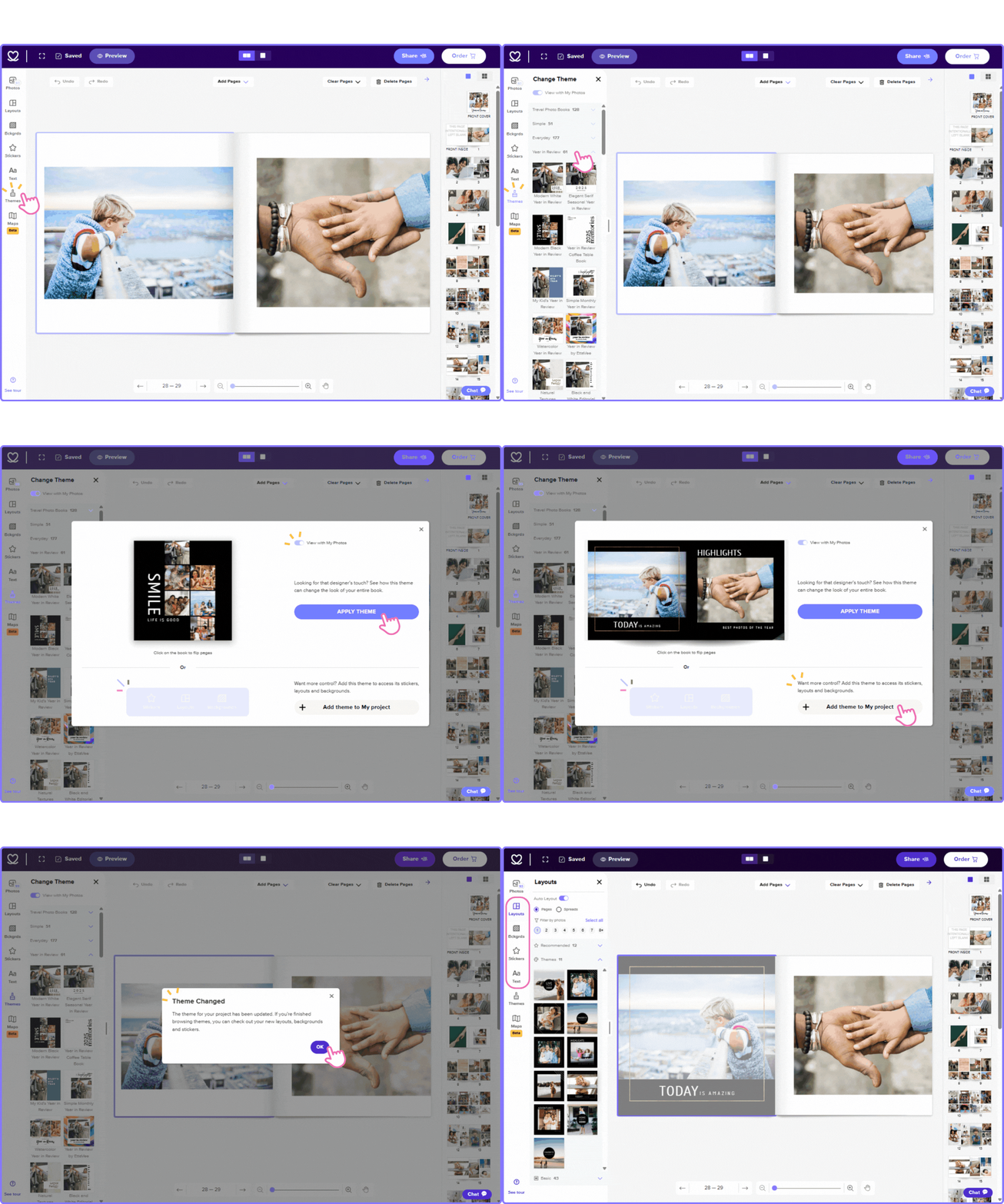
In the Mixbook Studio, click “Themes” on the left.
A new window will appear showing available themes organized by occasion. You can even preview each theme using your previously uploaded photos.
Click the theme you’d like to apply — there are two options for applying themes:
Apply Theme
This option completely changes your project’s design. All existing pages will be updated to match the new theme’s layouts, backgrounds, and stickers.
Add Theme to My Project
This option adds the new theme to your project without altering your existing pages. You can use the layouts, backgrounds, and stickers from the new theme only on the pages you create afterward.
📌 Note: Choosing Add Theme to My Project is safer if you want to keep your current design intact while still having access to new theme elements. Use Apply Theme only if you want to redesign the entire book.
To add pages from the new theme, you can:
Highlight a page you no longer want and apply a new layout, or
Create a new page and choose a layout from your new theme under the “Layouts” tab in the top-left corner.
✨ Tip: You can always mix and match! Add backgrounds or stickers from any theme by opening the corresponding tab on the left side of the Mixbook Studio and clicking Browse.