Swapping photos is easy with Mixbook’s built-in tools! Whether you’re rearranging photos on the same spread or across different pages, here’s how to do it:
To Swap Photos on the Same Page or Spread
- Click on the photo you want to swap.
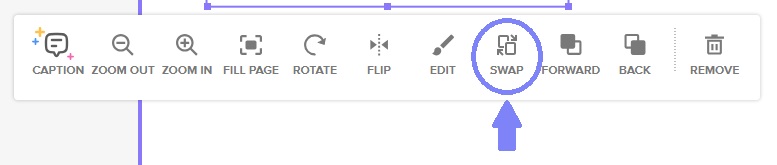
- A photo toolbar will appear below the image — click the "Swap" icon.
- Then, click on the second photo or photo box where you want to place the originally selected image.
The two photos will automatically switch places!
To Swap Photos Across Multiple Pages
Currently, the “Swap” tool only works within the same spread. If you're trying to swap photos between different pages, use the cut-and-paste or copy-and-paste method:
1. Click on the first photo, then press:
Ctrl + X (Cut) or Ctrl + C (Copy) on Windows
Command + X (Cut) or Command + C (Copy) on Mac
2. Navigate to the other page, click on the photo box, and press:
Ctrl + V or Command + V to paste