The Mixbook Studio makes saving simple! Your progress is automatically saved every few minutes and whenever you switch pages.
You can manually save your work at any time by clicking the SAVE button.
Here's a simple guide on how to save your project:
1. Locate the SAVE button in the top-left section of Mixbook Studio. It’s next to the Mixbook logo and Preview button—look for the floppy disk icon with SAVE written on it.
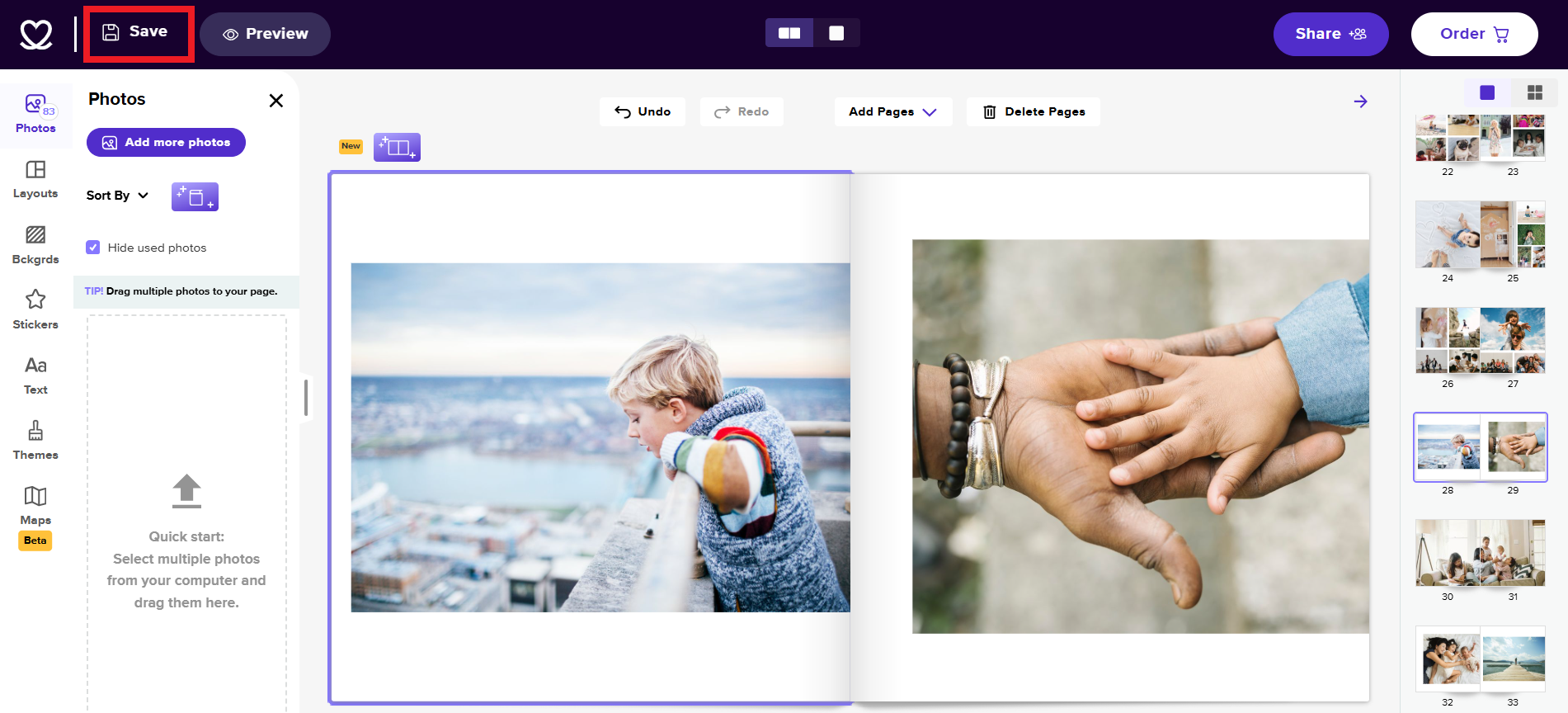
2. Click on the SAVE button to initiate the saving process.
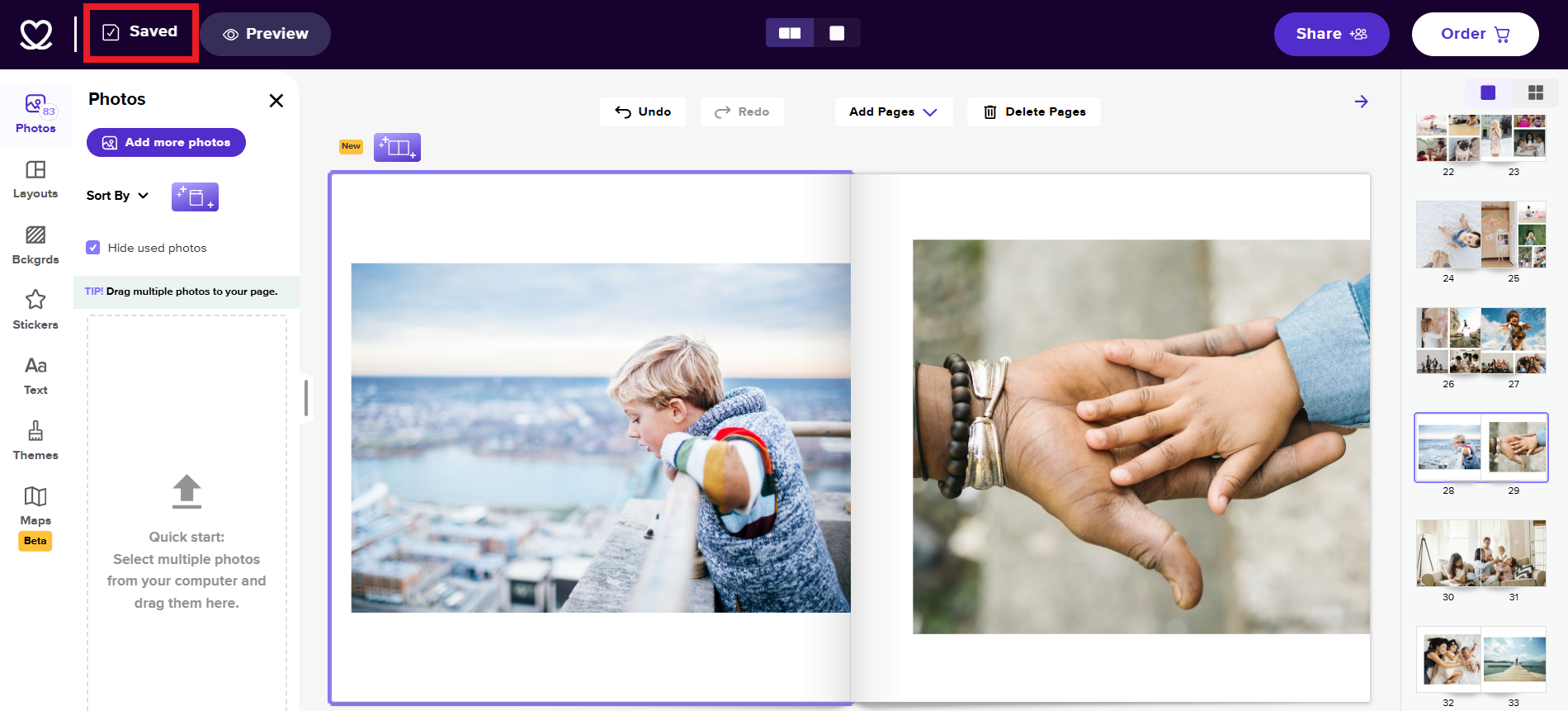
3. When the button displays a checkmark and says SAVED, it means your recent changes have been successfully saved.
📝Important Note: Please note that you need to have a Mixbook account to be able to save your project. If you started the project without creating an account, you will be asked to Sign Up (or Log In if you already have an account) to successfully save your progress.
Once saved, you can exit the Mixbook Studio safely by closing the Mixbook Studio tab. You can go back anytime to continue your Mixbook project!