Adding text to your project is quick and easy! Follow these steps for Desktop, Mobile App, and Mobile Browser to personalize your photo book with captions, quotes, and more.
🎥 Watch it in action: See this step in our Mixbook Studio Essentials video tutorial below.
🖥️ Desktop
Add Your Own Caption
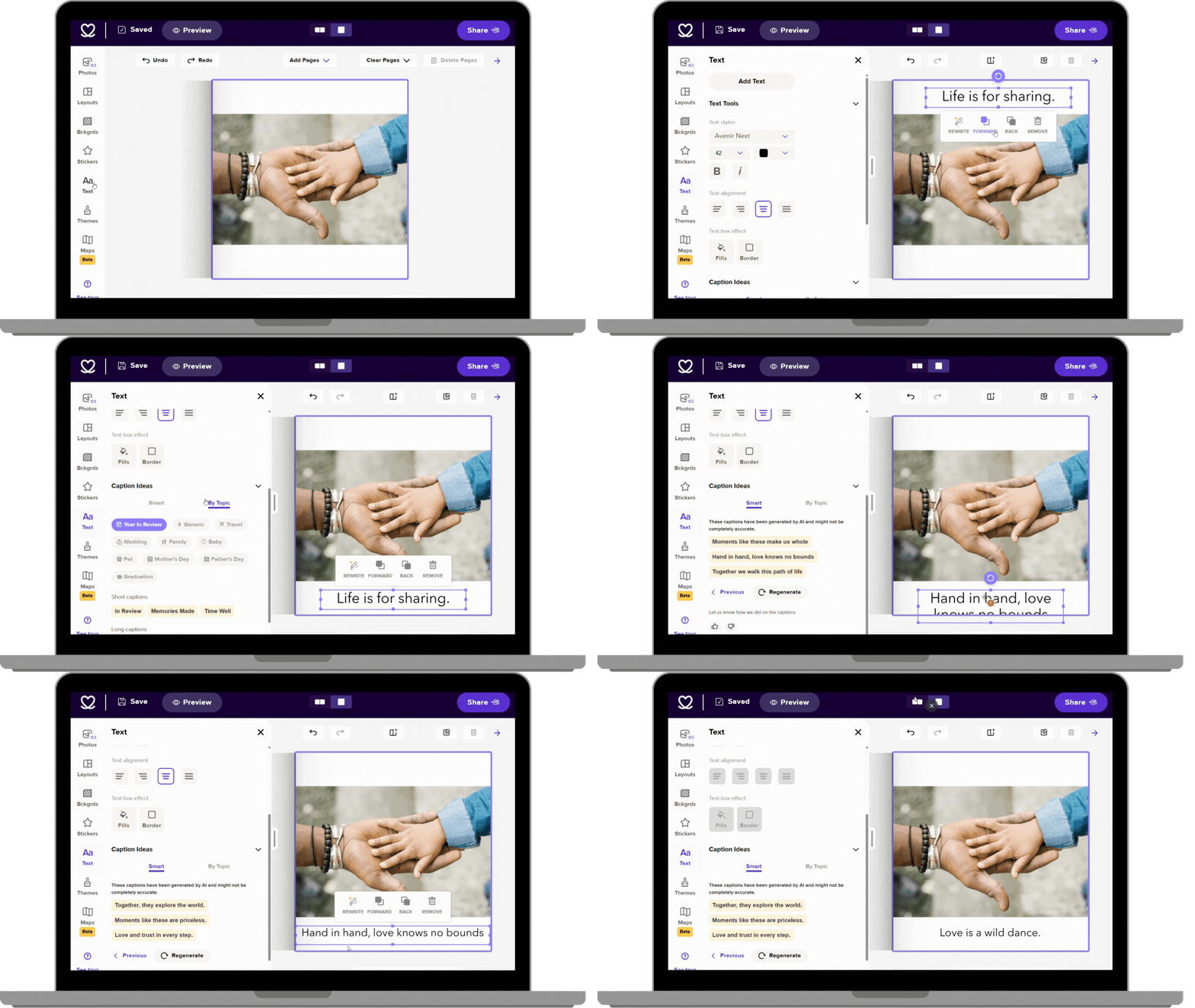
Click the "Text" icon on the left panel of the Mixbook Studio to open text options.
Click "Add Text" at the top of the panel. A text box will appear attached to your pointer.
Drag and position the text box where you want it on the page.
Click once to place the text box.
Double-click inside the box to start typing.
Use Mixbook's Smart Captions
Click the "Text" icon on the left panel.
Scroll to the bottom and look for "Caption Ideas."
Click on a caption option from the list.
Drag and position the text box where you want it.
Click once to place the caption in your design.
📱 Mixbook Mobile App & Mobile Browser
Add Your Own Caption
Open the page where you want to add text.
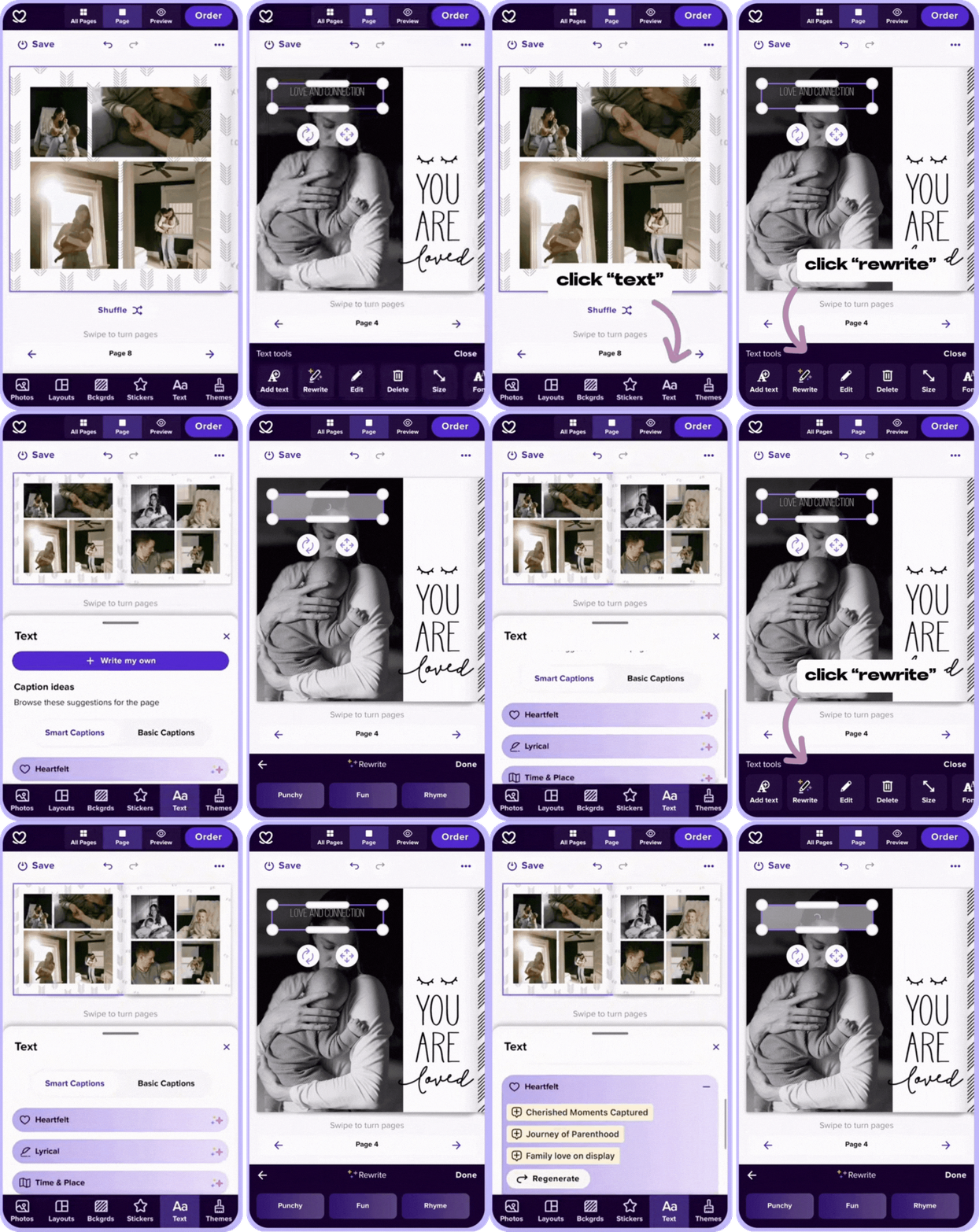
Tap the "Text" icon (Aa) on the bottom panel.
Tap "New Text" to add a text box.
Drag and position the text box where you want it.
Double-tap inside the box to start typing.
Use Mixbook's Smart Captions
Tap the "Text" icon (Aa) on the bottom panel.
Scroll down and select a caption context from the list.
Tap your chosen caption and drag the text box to position it on the page.
🎨 Customize Your Text
Once your text is added, you can change font style, size, color, alignment, and more using the editing toolbar.