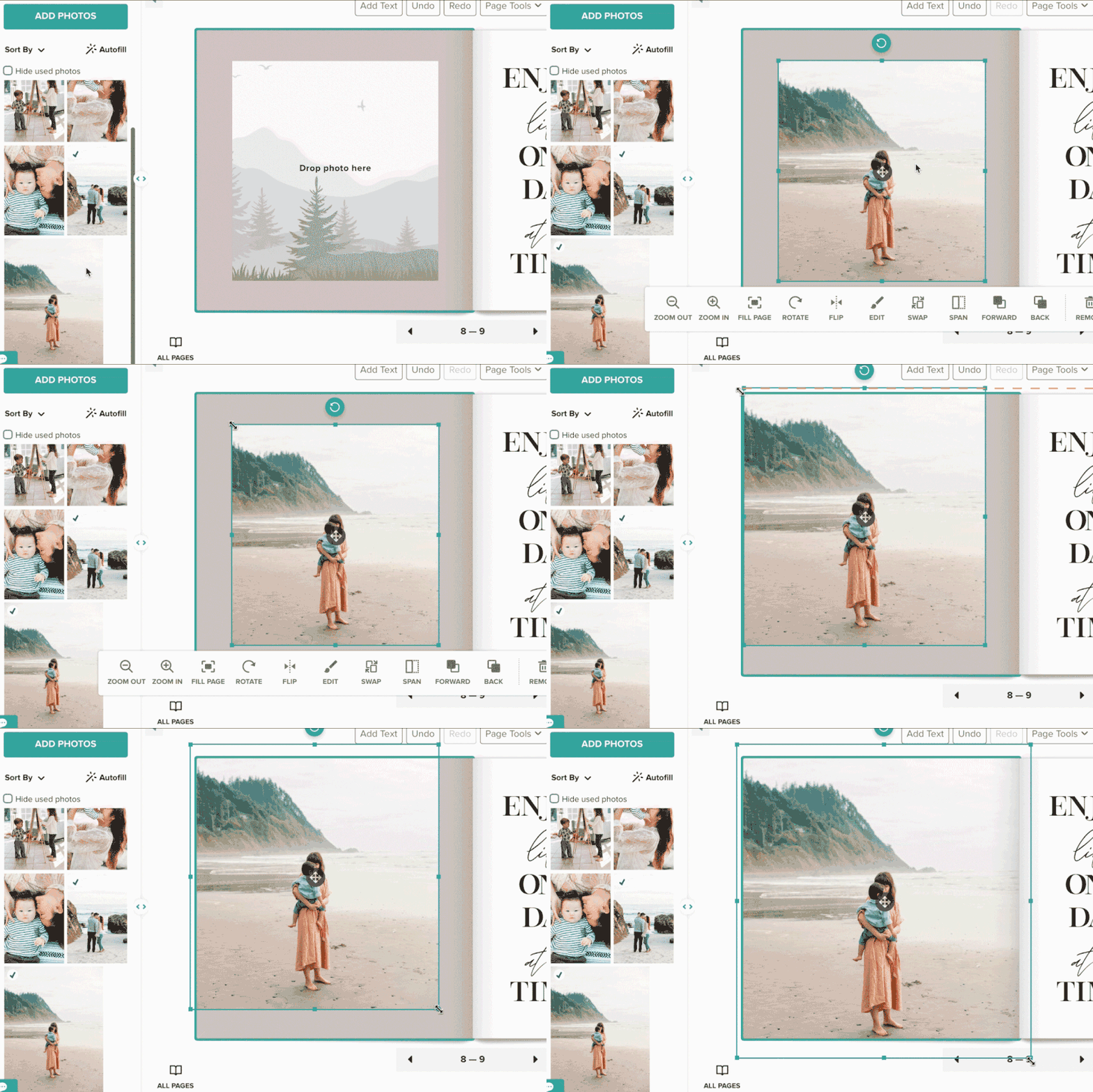
Bleeding your photo ensures that it prints edge-to-edge without unwanted borders. Follow these steps to extend your photo properly within the Mixbook Studio.
How to Bleed Your Photo
- Select the photo you want to extend.
- Drag the edges of the photo 1/8 to 1/4 inch beyond the page edge in the editor.
- Make sure any important elements (like faces or text) stay inside the safe zone, as anything beyond the bleed area may be trimmed during printing.
Bleeding Stickers
- Stickers may have a small 1/8-inch gap between their visible edge and the selection box.
- To ensure they print properly, extend the sticker slightly beyond the page edge, making sure its actual end bleeds off the page.