If you've designed your pages in another editing program, you can easily add them to your Mixbook project by uploading them as Backgrounds.
Important Notes:
- Pre-made pages must be in .JPEG format (the Mixbook Studio does not support other file types).
- Follow the pixel requirements shown during upload to avoid cropping or cutoff edges.
- Since the pages have been created in another editing program there are potentials for variations in the final product during printing
You can view other helpful articles for additional information::
How to Upload Custom Backgrounds
Creating your own pages for your Mixbook
How to Upload Your Pre-Made Pages as Backgrounds
- Open or start your Mixbook project.
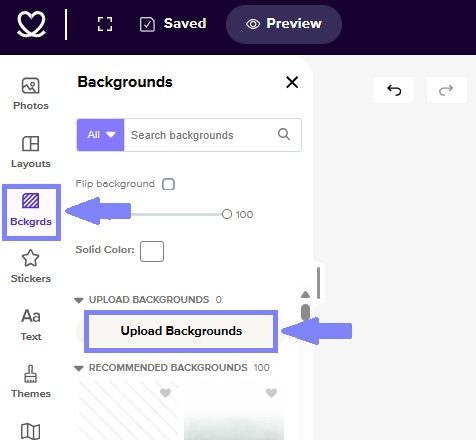
- Go to the Backgrounds tab on the left panel in the Mixbook Studio.
- Click Upload Backgrounds.
- The pixel requirements for your project will be displayed—these vary based on book size (landscape, portrait, or square).
- Click Upload Backgrounds again and select your pre-made images.
- Once uploaded, your images will appear in the Uploaded Backgrounds" section.
- Apply your backgrounds to your pages and start designing.
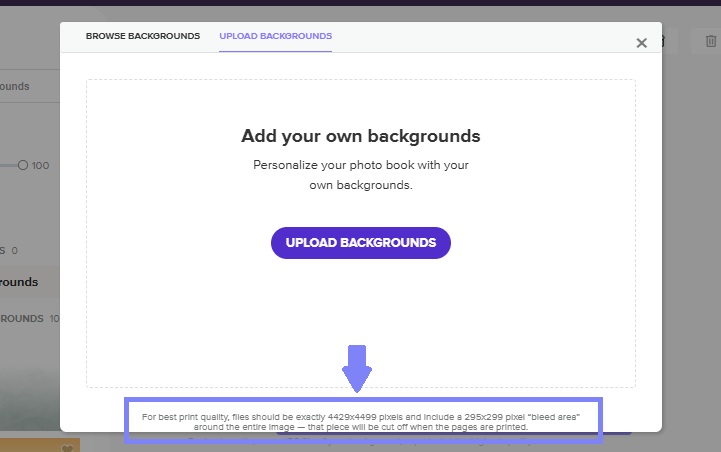
Pixel Requirement and Bleed Area
Please adhere to the "Pixel Requirement" as specified during the background uploading process. This ensure that no elements around the edges of the pre-made pages are cut off.