If the spine text is not visible, it’s likely because the font color is too similar to the background. To fix this, try changing either the background color of the spine or the font color.
If you cannot locate the spine in the Mixbook studio, it's most likely because the spine color is close to white & it is blending in with the Mixbook studio background. Hover over the area to the left of the cover and click which will outline the spine in purple.
If you are creating a softcover book you will not be able to add text to the spine.
Adding Text on the Spine
- To add a spine text, go to the Front Cover page in Mixbook studio
- To the left of the cover, you should see the spine
- If your book cover is white, or close to white, the spine may be difficult to see so try hovering over to the area on the left & click to see the spine outlined in purple
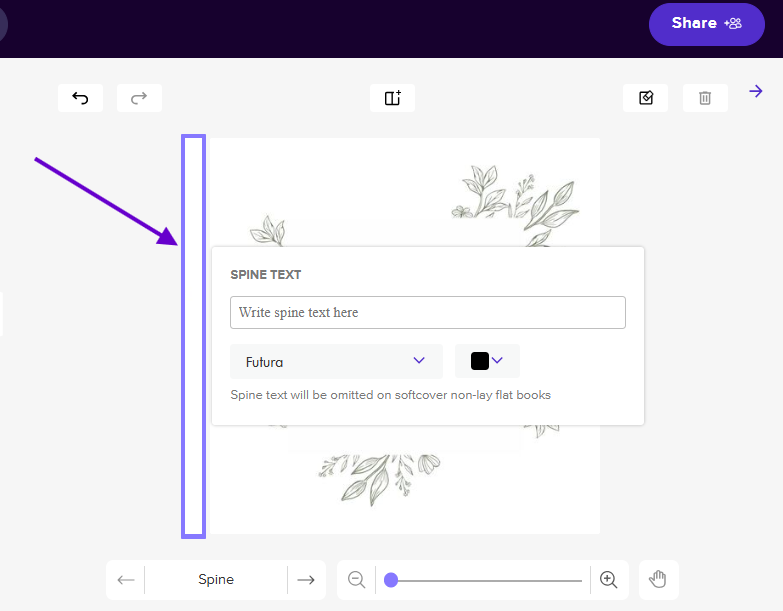
- If your book cover is white, or close to white, the spine may be difficult to see so try hovering over to the area on the left & click to see the spine outlined in purple
📌 Note: If you are still unable to locate the spine, it may be because you're creating a softcover book that does not allow for spine text.
Changing the Spine Background Color
- Go to the Front Cover page in Mixbook Studio.
- Click on the Spine area.
- Open the "Backgrounds" tab.
- Select a different background color for better contrast.
Changing the Spine Text Font Color
- Go to the Front Cover page in Mixbook studio
- Click on the Spine text.
- Click the color option next to the font style selector.
- Choose a different font color that stands out against the background.