Easily duplicate your project and change its size or format in just a few steps.
Copying Your Project (only available through Mixbook.com through desktop or mobile web)
Via Desktop
1. Go to your "My Projects" page.
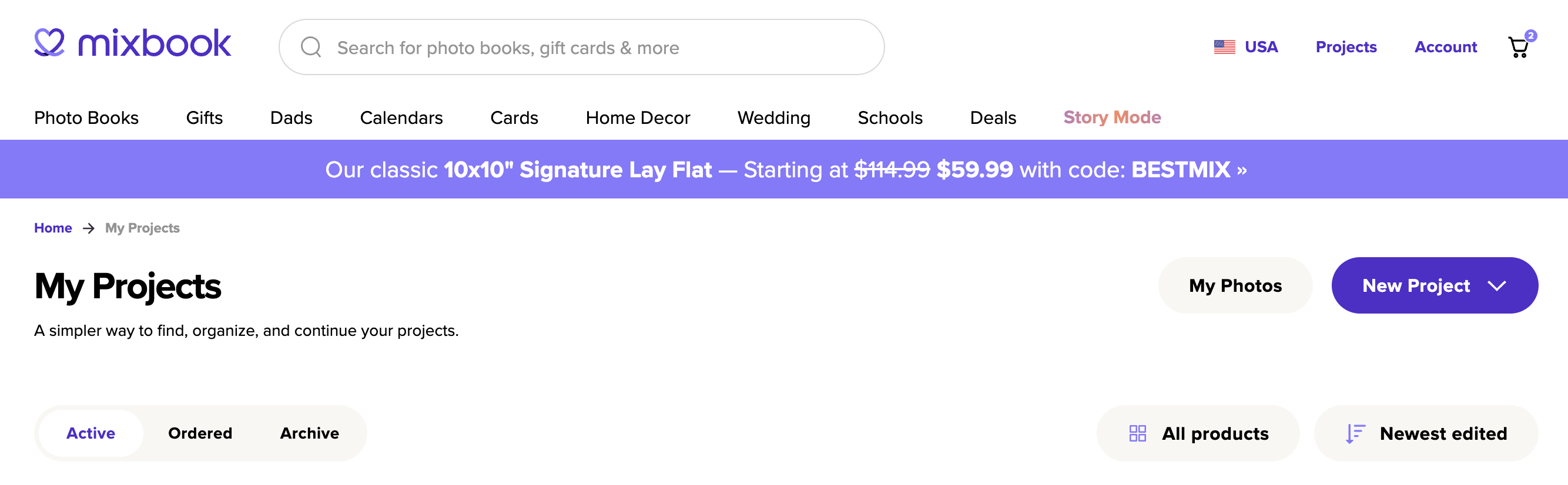
2. Click the "Copy" button next to the project you want to duplicate.
3. To change the project size, click "Copy To" and select the new size or format. 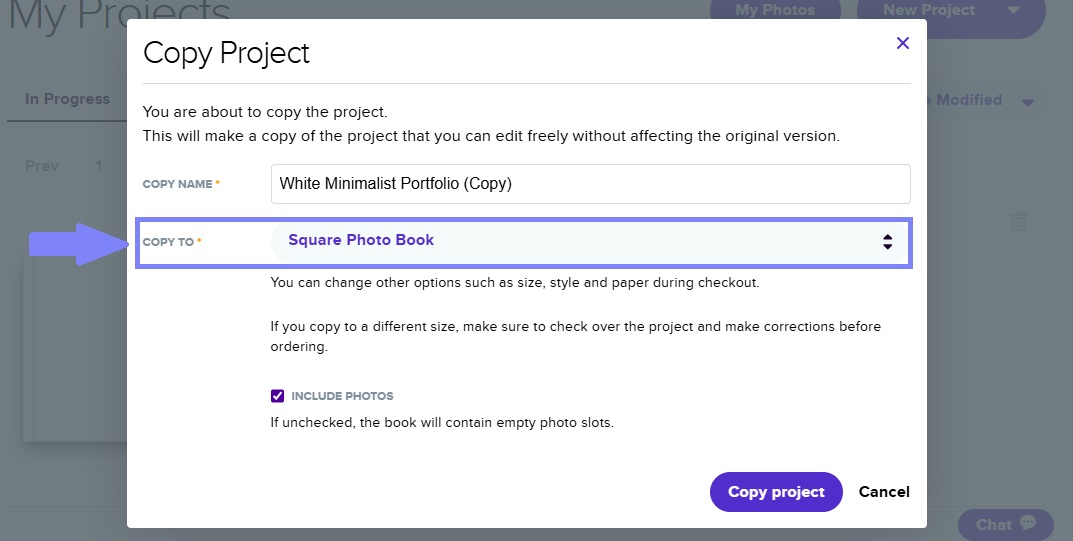
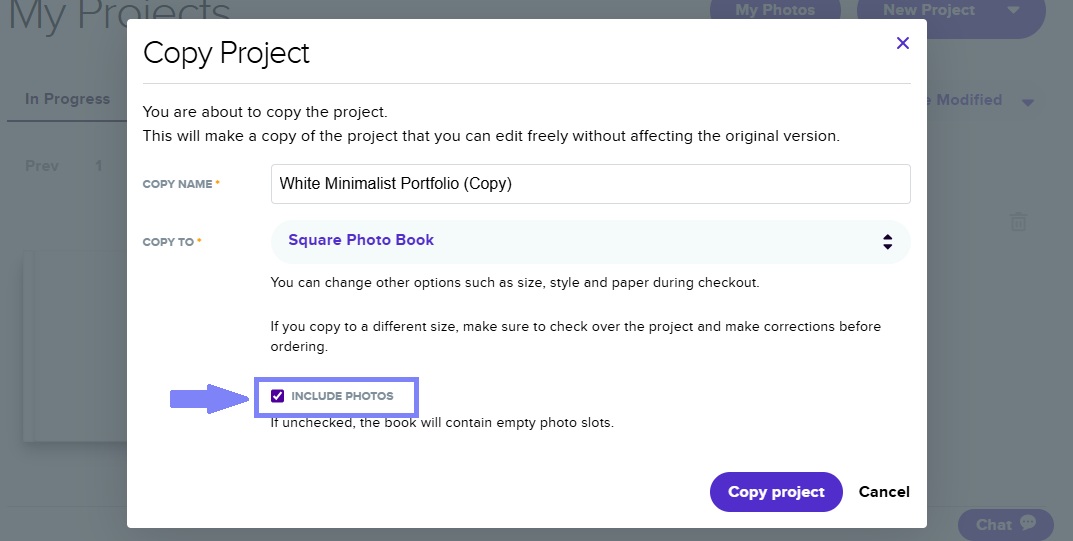
4. You’ll also have the option to include or exclude photos in the copied project.
- IMPORTANT:: Please check each page of the new project copy as elements (photos, texts, sticker etc.) will shift when copying a project to a different orientation (example changing the book size from 8.5x11 to 8.5x8.5 (landscape to square).
Copying or Duplicating a Mixbook Project (Excluding Photos)
💡 Pro Tip: Want to start fresh while keeping the same format?
- Copy the project and uncheck the "Include Photos" box to create a blank version.
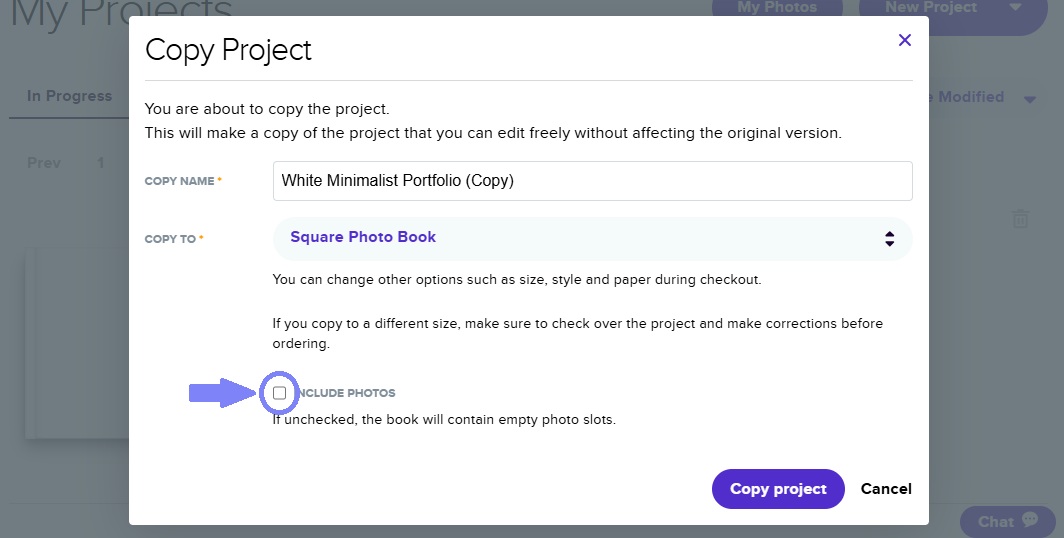
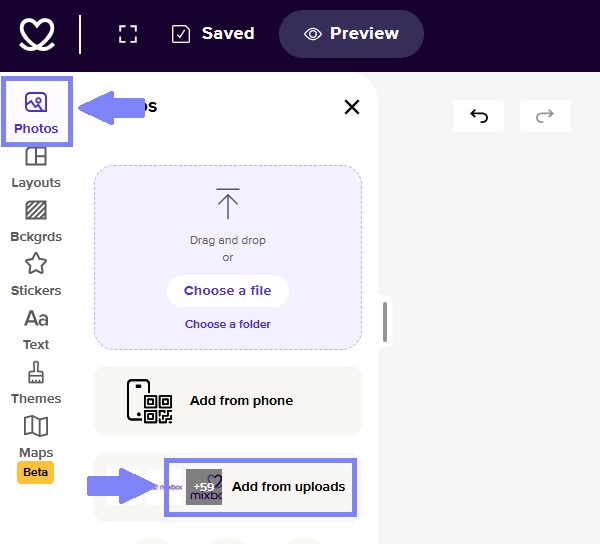
- If you uncheck "include photos" but want to add them back later, go to "Photos" in the editor and select "Add from uploads" to access all previously uploaded images.
Via Mixbook App
Changing size but not orientation
- You can change the size of the book at checkout.
Changing book orientation (Square, Landscape, Portrait)
- At this time, you will have to transition to Mixbook.com on desktop or mobile to duplicate your project to a different orientation to achieve this.
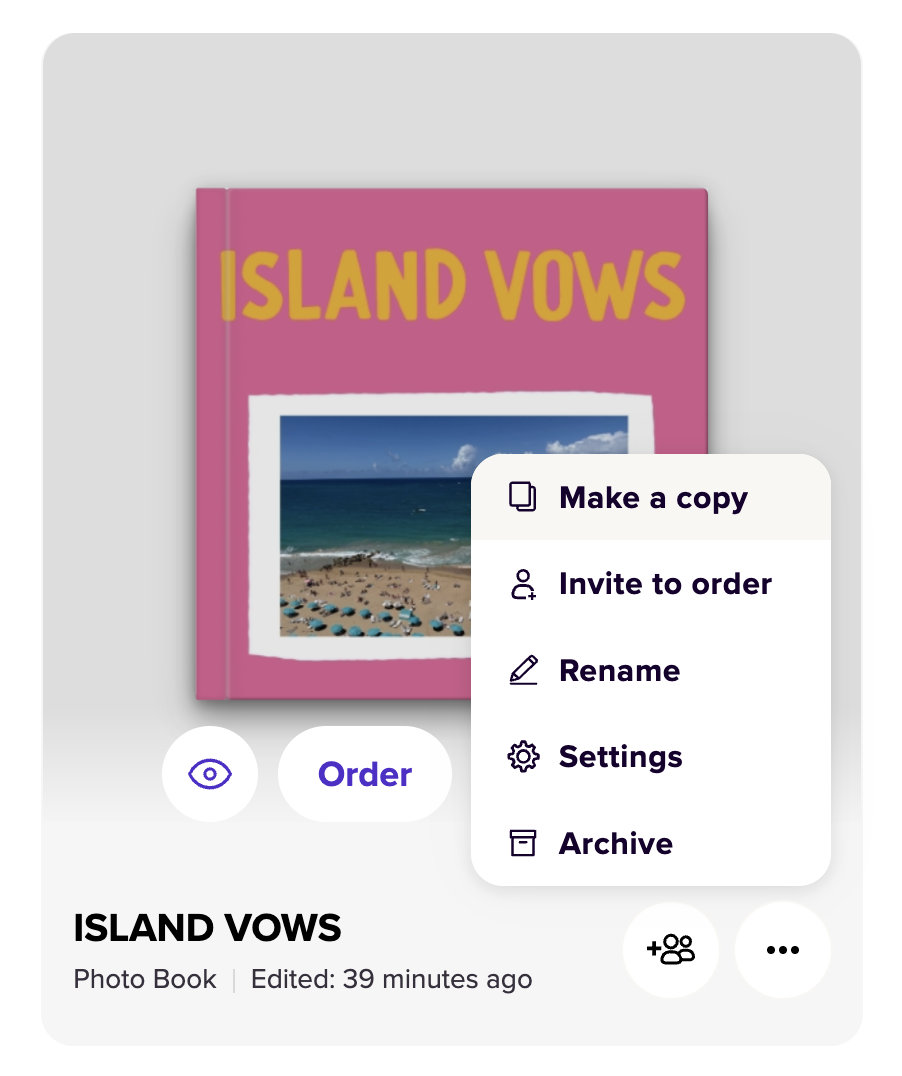
- Once on Mixbook.com, click “Projects”
- Tap the “three-dot” icon below the project you want to change.
- You will then see “Make a copy” option, click there.
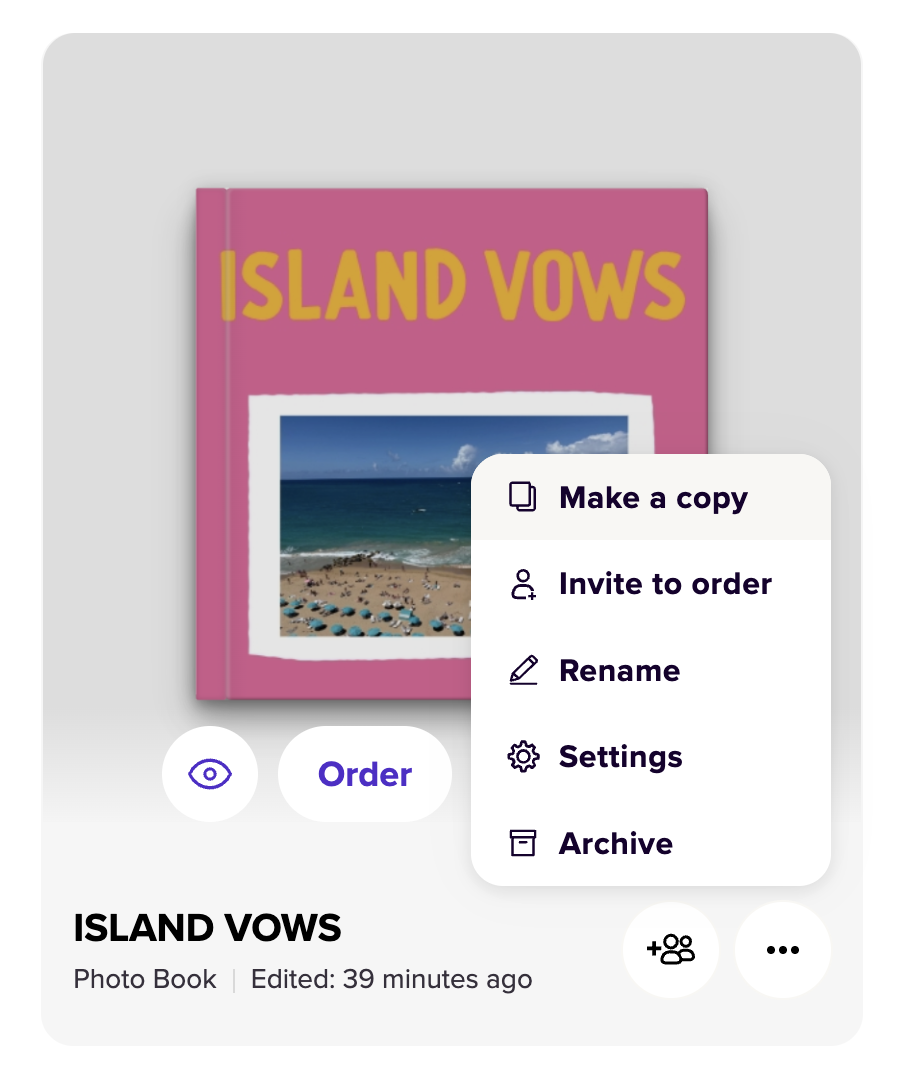
- In the next screen, find the section called “Copy to” and select the orientation you want (Square, Landscape or Portrait).
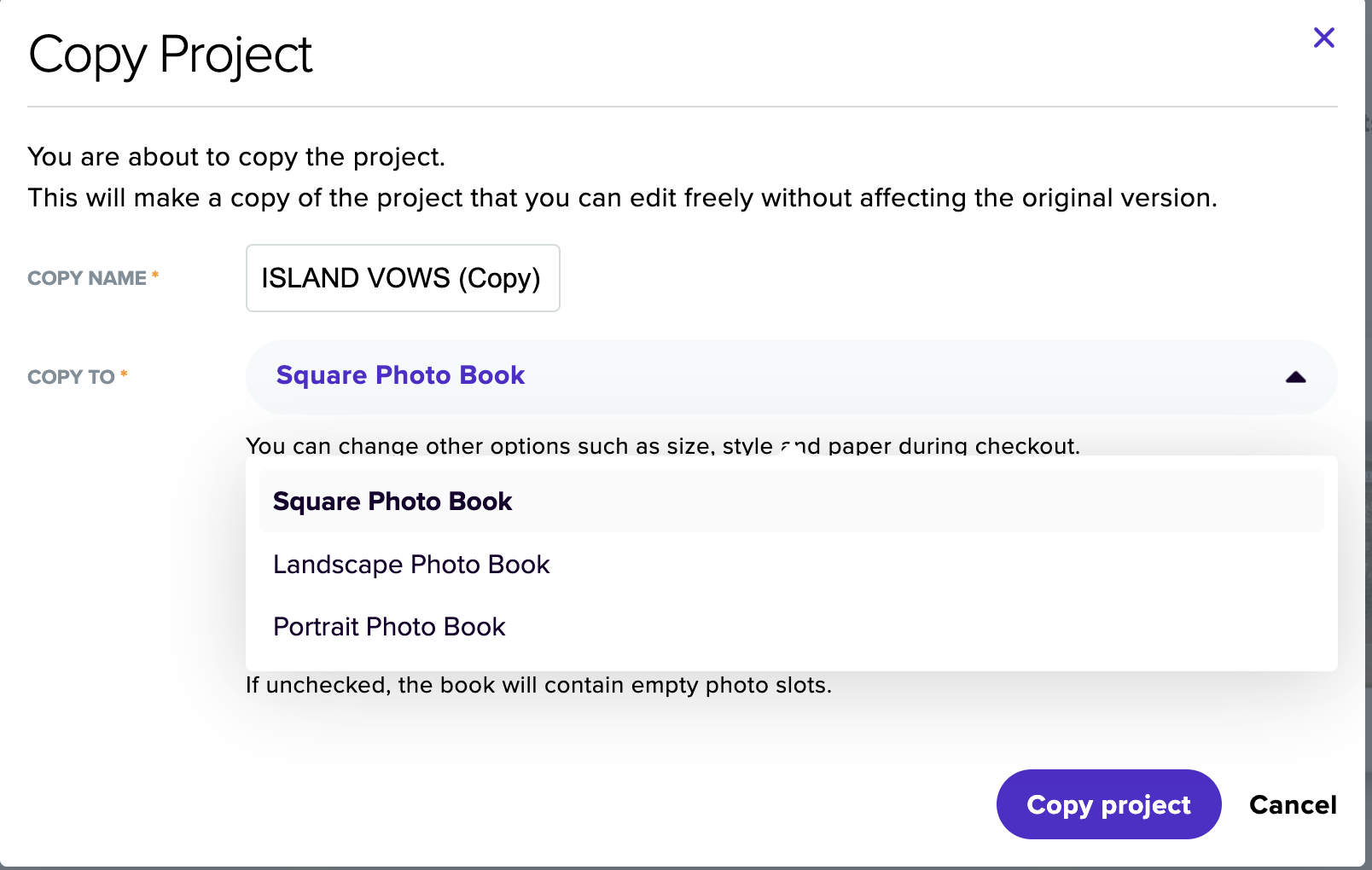
- To finalize, tap “Copy Project”.
- IMPORTANT:: Please check each page of the new project copy as elements (photos, texts, sticker etc.) will shift when copying a project to a different orientation.
📌 Note: Some design elements may adjust automatically when changing sizes, so review your project before finalizing!
Downloading Previous Uploaded Photos (Via Desktop only)
To download a photo you’ve uploaded:
- Head to your My Photos page and hover over the image you want.
- Click the magnifying glass icon to open it in a new tab.
- From there, just right-click the photo and select “Save Image As” to download it.
📝Note: You’ll need to download photos one at a time using this method.