Need to update your calendar’s starting month or year? Follow these steps to create a new version with your preferred start date.
Steps to Change Your Calendar’s Start Month or Year
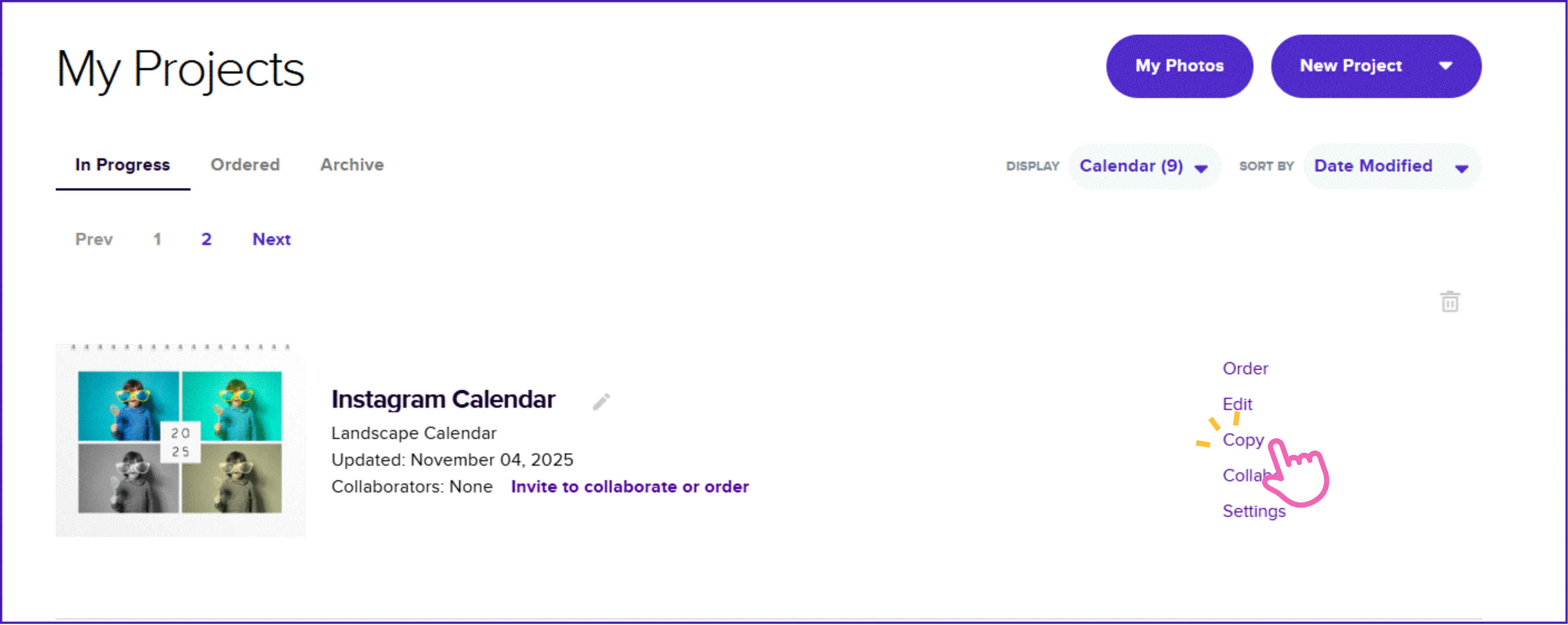
- Go to "My Projects" at the top of the Mixbook homepage.
- Locate your calendar project and click the "Copy" button.
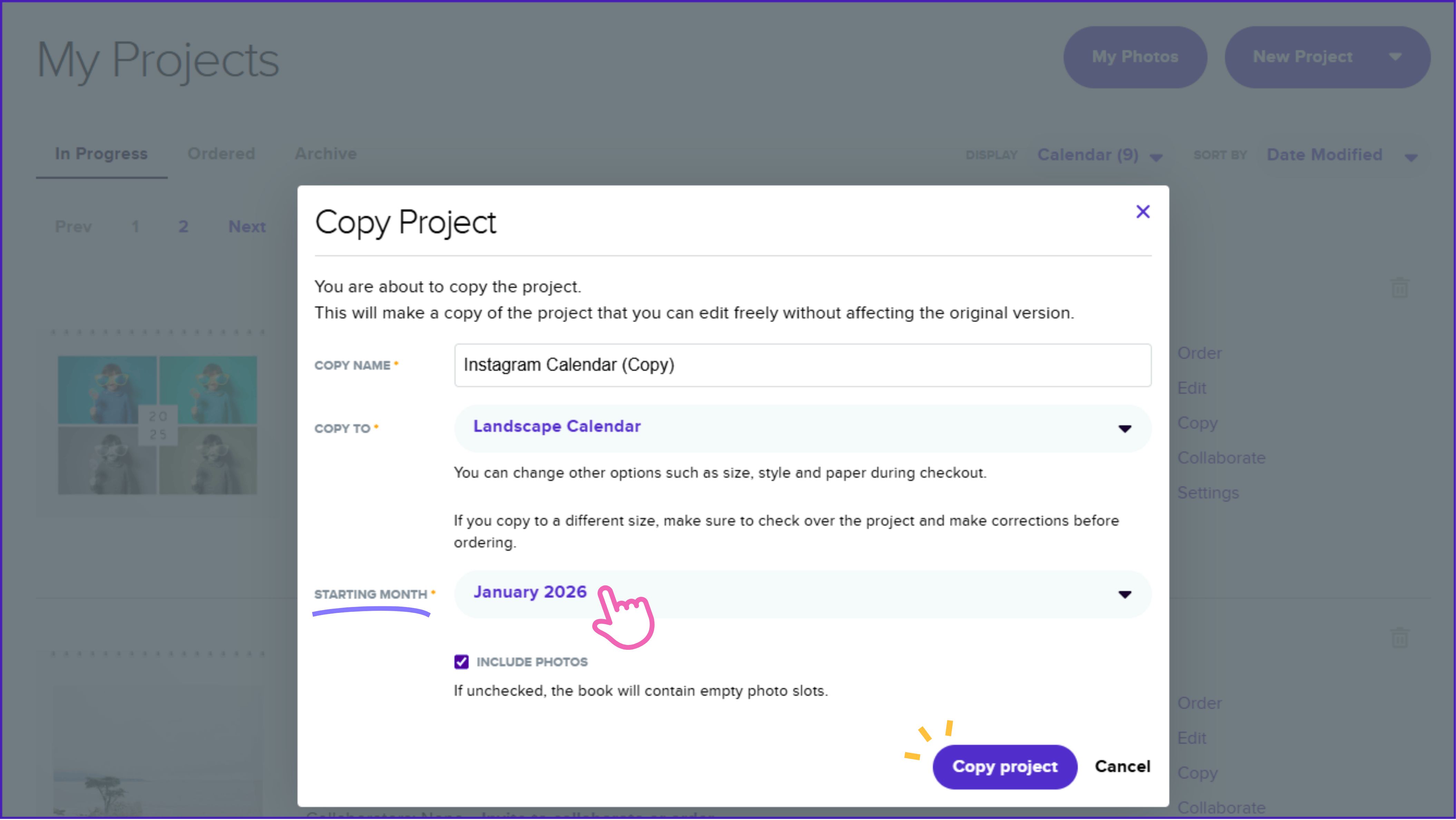
- Select your new starting month and year.
- Click "Copy Calendar" to create the updated version.
Starting a Calendar for the following year
You can start a calendar for the following year by doing the steps below:
- Select or click the preferred theme
- In the next page, you can select a "Starting Month"
- You should be able to see the starting month options
- Click on "Start Calendar" to start the project
⚠️ Important Note
✔ Events, stickers, photos, and text inside the calendar grids will not transfer to the new calendar. You will need to manually add them again.
✔ Mixbook calendars is only limited to 12-month calendar.